Workflows automatically generates *execution logs* for
[workflow executions](https://docs.cloud.google.com/workflows/docs/executing-workflow.md.txt) in Cloud Logging.
You can also enable *call logging* . Or, you can create *custom logs* that use
the `sys.log` function in your source. Call logging and custom logs let you
control when logs are sent to Logging during a workflow execution
and can be particularly helpful when debugging your workflow.
For details, including the `engine_call` and `executions_system` logging proto
files, see this [GitHub repository](https://github.com/googleapis/googleapis/blob/master/google/cloud/workflows/type).
## Execution logs
Each workflow execution automatically triggers at least two execution logs:
one at the start of an execution and one at the end.
For more information about the Workflows platform logs that
are available in Logging, see [Google Cloud platform logs](https://docs.cloud.google.com/logging/docs/api/platform-logs.md.txt#workflows).
## Call logging
You can set a flag so that each [call step](https://docs.cloud.google.com/workflows/docs/reference/syntax/calls.md.txt)
during the execution of your workflow is logged, and step names, function names,
function arguments, and call responses are returned. Or, you can log any
exceptions that are caught, or that stop a call.
Only explicit call steps are logged; for example, calls to subworkflows or
library functions. Calls from within expressions, or within standard
library functions (for example, `http.post` in `sys.log`), and inside connectors
are *not* logged.
HTTP `Authorization` request headers are redacted from the logs for HTTP calls.
When applying call logging to a
[workflow definition](https://docs.cloud.google.com/workflows/docs/creating-updating-workflow.md.txt#create_a_workflow)
or to the
[execution of a workflow](https://docs.cloud.google.com/workflows/docs/executing-workflow.md.txt#execute_a_workflow),
you can specify the level of logging required. The execution log level takes
precedence over any workflow log level, unless the execution log level is not
specified (the default); in that case, the workflow log level applies.
Note that the [log entry size limit](https://docs.cloud.google.com/logging/quotas.md.txt) set by Cloud Logging
also applies to call logging.
## Custom logs
To create a log entry in Logging during a workflow execution,
define a step in the workflow that makes a call to the standard library `sys.log`
function:
### YAML
```yaml
- step1:
assign:
- varA: "Hello"
- varB: "World"
- logStep:
call: sys.log
args:
text: TEXT
severity: SEVERITY
- step2:
return: ${varA + " " + varB}
```
### JSON
```json
[
{
"step1": {
"assign": [
{
"varA": "Hello"
},
{
"varB": "World"
}
]
}
},
{
"logStep": {
"call": "sys.log",
"args": {
"text": "TEXT",
"severity": "SEVERITY"
}
}
},
{
"step2": {
"return": "${varA + " " + varB}"
}
}
]
```
When creating a log entry, define the following:
- `TEXT`: required. The text to be logged. If you need to log the values of a map, use `${json.encode_to_string(myMap)}`.
- `SEVERITY`: optional. The severity level of the log entry. For example, `INFO`, `WARNING`, or `CRITICAL`.
For more information, see the `sys.log` [function reference](https://docs.cloud.google.com/workflows/docs/reference/stdlib/sys/log.md.txt).
### Required permissions
To apply call logging or send custom logs to Logging, a workflow
must be associated with a service account that includes the
`logging.logEntries.create` permission (for example, the `roles/logging.logWriter`
role). If you need to change the service account updated with your workflow, see
[Update a workflow](https://docs.cloud.google.com/workflows/docs/creating-updating-workflow.md.txt#updating_a_workflow).
To learn more about creating service accounts and assigning roles, see
[Manage access to projects, folders, and organizations](https://docs.cloud.google.com/iam/docs/granting-changing-revoking-access.md.txt).
## View workflow logs
You can view logs in Workflows or in Logging.
To view the logs for a single workflow, use the **Logs** tab in
Workflows. To get an aggregate view of the logs for all
of your workflows, use the **Logs Explorer** page in Logging.
### View logs in Workflows
To view a workflow's logs in Workflows, do the following:
1. In the Google Cloud console, go to the **Workflows** page:
[Go to Workflows](https://console.cloud.google.com/workflows)
2. To access a workflow's logs, click the workflow's name to go
to its **Details** page.
3. To view the logs, click **Logs**.
4. To filter the logs by severity, in the **Default** list, select
the type of log to display. By default, logs of all severity
levels are shown.
The **Logs** tab on a workflow's **Details** page displays the following types
of logs:
- Logs sent to Logging
- Audit logs of any operations performed on the workflow, such as updates to
the workflow's definition
### View logs in Logging
To view logs in Logging, do the following:
1. In the Google Cloud console, go to the **Logs Explorer** page:
[Go to Logs Explorer](https://console.cloud.google.com/logs/query)
2. In the **Query builder** , click **Resource** and enter `workflow`. Select
**Cloud Workflow** from the list and click **Add**.
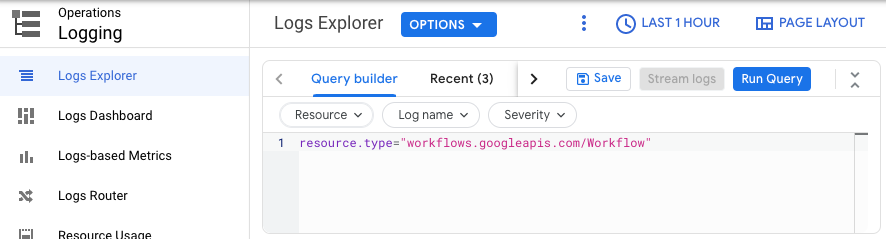
3. Click **Run query**.
To learn more about viewing logs in Logging, see
[Use the Logs Explorer](https://docs.cloud.google.com/logging/docs/view/logs-explorer-interface.md.txt).
## What's next
- [Access workflow execution results](https://docs.cloud.google.com/workflows/docs/access-execution-results.md.txt)
- [Troubleshoot issues](https://docs.cloud.google.com/workflows/docs/troubleshooting.md.txt)