Gemini Enterprise Agent Platform Vision is an AI-powered platform you can use to ingest, analyze, and
store video data. Gemini Enterprise Agent Platform Vision lets you build
and deploy AI applications. You can build end-to-end Gemini Enterprise Agent Platform Vision solutions
by leveraging Gemini Enterprise Agent Platform Vision's integration with other product components.
To start implementing solutions using the Gemini Enterprise Agent Platform Vision platform,
review the following Agent Platform Vision concepts and components:
- **Streams**: Represent a video streaming layer from your solution. The stream
source can be a live video (for example, an IP camera) or a video file
(for example, an MP4 file).
- **Applications**: Enable the connection between a stream and an AI processor
to perform a machine learning operation on the video. For example, you can
connect a camera stream to an AI model that counts people passing in front of
it.
- **Media warehouses**: Store the video ingested by streams out to
Google Cloud storage. Storing data out to this destination lets you
query analysis
output and metadata from the AI processors used on data from the ingested
streams.
## Objectives
This tutorial shows you how to do the following:
- Create an occupancy count app.
- Deploy your app for use.
- Set up a remote machine to stream video.
- Ingest the streaming video into a stream node in your app.
- Search for videos in your storage Gemini Enterprise Agent Platform Vision's Media Warehouse.
## Costs
In this document, you use the following billable components of Google Cloud:
- [Agent Platform Vision](https://docs.cloud.google.com/vision-ai/pricing) (Streams - Data ingested, Streams - Data consumed, Models - Occupancy analytics suite, Warehouse - Video storage)
- [Compute Engine](https://cloud.google.com/compute/all-pricing)
To generate a cost estimate based on your projected usage,
use the [pricing calculator](https://docs.cloud.google.com/products/calculator).
New Google Cloud users might be eligible for a [free trial](https://docs.cloud.google.com/free).
When you finish the tasks that are described in this document, you can avoid
continued billing by deleting the resources that you created. For more information, see
[Clean up](https://docs.cloud.google.com/vision-ai/docs/occupancy-count-tutorial.md.txt#clean-up).
## Before you begin
^†^ Role only needed if you copy a sample video file from a
Cloud Storage bucket.
## Create an occupancy count application
After you have set up your environment, the first step is to create the app
that processes your data.
An app can be thought of as an
automated pipeline that connects the following:
- **Data ingestion**: A video feed is ingested into a stream.
- **Data analysis**: An AI model can be added after the ingestion. Any computer vision operation can be performed on the ingested video information.
- **Data storage**: The two versions of the video feed (the original stream and the stream processed by the AI model) can be stored in a media warehouse.
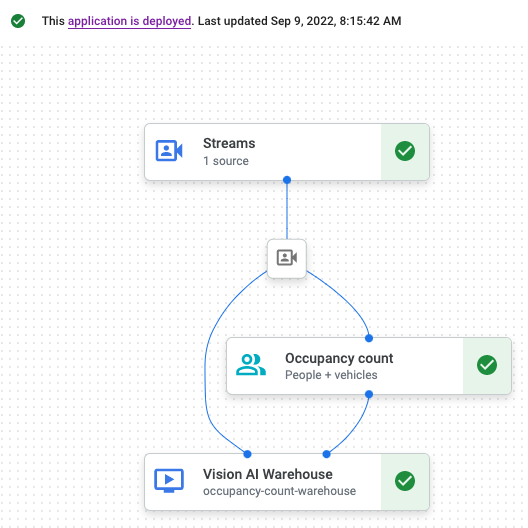
In the Google Cloud console an app is represented as a graph.
Additionally, in Gemini Enterprise Agent Platform Vision an app graph must have at least two nodes: a
video source node (stream), and *at least* one more node (a processing model or
output destination).
### Create an empty app
Before you can populate the app graph, you must first create an empty app.
### Console
Create an app in the Google Cloud console.
1. Open the **Applications** tab of the Gemini Enterprise Agent Platform Vision dashboard.
[Go to the Applications tab](https://console.cloud.google.com/ai/vision-ai/applications)
2. Click the **Create** button.
3. Enter `occupancy-count-app` as the app name and choose your region.
4. Click **Create**.
### Add app component nodes
After you have created the empty application, you can then add the three nodes
to the app graph:
1. **Ingestion node**: The stream resource that ingests data sent from a Compute Engine VM instance you create.
2. **Processing node**: The occupancy analytics model that acts on ingested data.
3. **Storage node**: The media warehouse that stores processed videos, and also serves as a metadata store. The warehouse allows analytics information to be generated about ingested video data, as well as stores information that AI models infer about the data.
### Console
Add component nodes to your app in the console.
1. Open the **Applications** tab of the Gemini Enterprise Agent Platform Vision dashboard.
[Go to the Applications tab](https://console.cloud.google.com/ai/vision-ai/applications)
2. Next to the name of your `occupancy-count-app` application in the list,
select **View app**. This takes
you to the graph visualization of the processing pipeline.
**Add a data ingestion node**
1. To add an input stream node, select the **Streams** option in the
**Connectors** section of the side menu.
2. In the **Source** section of the **Stream** menu that opens, select
**Add streams**.
3. In the **Add streams** menu, choose
**Register new
streams** and add `occupancy-count-stream` as the stream name.
4. To add the stream to the app graph, click **Add streams**.
**Add a data processing node**
1. To add the occupancy count model node, select the **occupancy analytics**
option in the **Specialized models** section of the side menu.
2. Leave the default selections
**People** and
**Vehicles**.
**Add a data storage node**
1. To add the output destination (storage) node, select the
**Gemini Enterprise Agent Platform Vision's Media Warehouse** option in the **Connectors** section of the side
menu.
2. In the **Gemini Enterprise Agent Platform Vision's Media Warehouse** menu, click **Connect warehouse**.
3. In the **Connect warehouse** menu, select
**Create new
warehouse** . Name the warehouse `occupancy-count-warehouse`, and leave
the TTL duration at 14 days.
4. Click the **Create** button to add the warehouse.
## Deploy your app for use
After you have built your end-to-end app with all the necessary components, the last step to using the app is to deploy it.
### Console
1. Open the **Applications** tab of the Gemini Enterprise Agent Platform Vision dashboard.
[Go to the Applications tab](https://console.cloud.google.com/ai/vision-ai/applications)
2. Next to the name of your `occupancy-count-app` application in the list,
select **View app**.
3. From the application graph builder page, click the
**Deploy** button.
4. In the following confirmation dialog, select **Deploy**.
The deploy operation might take several minutes to complete. After
deployment finishes, green check marks appear next to the nodes.
## Set up a remote machine to stream video
Now that you have a deployed occupancy count app ready to receive, process,
and store streaming data, you must actually stream video data into the app.
In this tutorial you create a Compute Engine VM instance that hosts a video,
and you send that streaming video data from the VM.
### Create a Linux VM
The first step in sending video from a Compute Engine VM instance is creating
the VM instance.
### Console
1. In the console, go to the **VM instances** page.
[Go to VM instances](https://console.cloud.google.com/compute/instances)
2. Select your project and click **Continue**.
3. Click **Create instance**.
4. Specify a **Name** for your VM. For more information, see
[Resource naming convention](https://docs.cloud.google.com/compute/docs/naming-resources.md.txt#resource-name-format).
5. Optional: Change the **Zone** for this VM. Compute Engine
randomizes the list of zones within each region to encourage use across
multiple zones.
6. Accept the remaining default options. For more information about these
options, see [Create and start a VM](https://docs.cloud.google.com/compute/docs/instances/create-start-instance.md.txt#startinstanceconsole).
7. To create and start the VM, click **Create**.
### Set up the VM environment
After the VM has started, you can use the console to establish
an SSH
connection in your browser. After establishing this connection, you can download
the `vaictl` command-line tool to ingest video into your app.
### Console
**Establish an SSH connection to your VM**
1. In the console, go to the **VM instances** page.
[Go to VM instances](https://console.cloud.google.com/compute/instances)
2. In the **Connect** section of the instance line you created, click
**SSH**. This opens an SSH connection in a new browser window.

**Download the `vaictl` command-line tool**
1. In the **SSH-in-browser** window, download the Gemini Enterprise Agent Platform Vision
(`vaictl`) command-line tool using the following command:
```bash
wget https://github.com/google/visionai/releases/download/v0.0.5/visionai_0.0-5_amd64.deb
```
2. Install the command-line tool by running the following command:
```bash
sudo apt install ./visionai_0.0-5_amd64.deb
```
3. You can test the installation by running the following command:
```bash
vaictl --help
```
## Ingest a video file into your app
After you set up your VM environment, you can copy a sample video file and then
use `vaictl` to stream the video data to your occupancy count app.
### SSH-in-browser
**Copy a sample video to your VM**
1. In the **SSH-in-browser** window for your VM, copy a sample video with the following [`gcloud storage cp`](https://docs.cloud.google.com/sdk/gcloud/reference/storage/cp) command. Replace the following variable:
- SOURCE: The location of a video file to use. You can use your own video file source (for example, `gs://BUCKET_NAME/FILENAME.mp4`), or use one of the sample videos:
- `gs://cloud-samples-data/vertex-ai-vision/street_vehicles_people.mp4` (video with people and vehicles, [source](https://pixabay.com/videos/traffic-london-england-21438/))
- `gs://cloud-samples-data/vertex-ai-vision/highway_vehicles.mp4` (video with vehicles only, [source](https://pixabay.com/videos/traffic-car-highway-street-27260/))
```
gcloud storage cp SOURCE .
```
**Stream video from VM and ingest data into your app**
1. To send this local video file to the app input stream, use the following command. You must make the following variable substitutions:
- PROJECT_ID: Your Google Cloud project ID.
- LOCATION_ID: Your location ID. For example, `us-central1`. For more information, see [Cloud locations](https://cloud.google.com/about/locations).
- LOCAL_FILE.EXT: The filename of a local video file. For example, `my-video.mp4`.
- `--loop` flag: Optional. Loops file data to simulate streaming.
This command streams a video file to a stream. If you use the
`--loop` flag, the video is looped into the stream until you
stop the command:
```
vaictl -p PROJECT_ID \
-l LOCATION_ID \
-c application-cluster-0 \
--service-endpoint visionai.googleapis.com \
send video-file to streams 'occupancy-count-stream' --file-path LOCAL_FILE.EXT --loop
```
It might take \~100 seconds between starting the `vaictl` ingest operation and
the video appearing in the dashboard.
After the stream ingestion is available,
you can see the video feed in the **Streams** tab of the Gemini Enterprise Agent Platform Vision
dashboard by selecting the `occupancy-count-stream` stream.
[Go to the Streams tab](https://console.cloud.google.com/ai/vision-ai/video-streams)
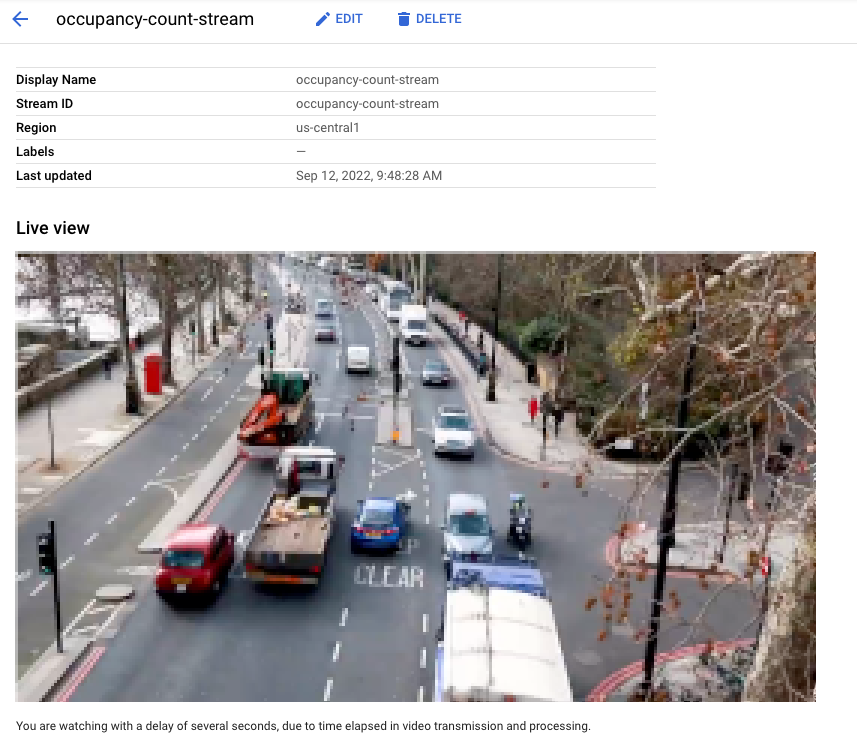 *Live view of video being ingested into the stream in the Google Cloud console. Video credit:* [Elizabeth Mavor](https://pixabay.com/videos/id-21438/) on [Pixabay](https://pixabay.com/) (*pixelation added*).
## Search video content in the storage warehouse
After you ingest video data into your processing app, you can view analyzed
video data, and search the data based on occupancy analytics information.
### Console
1. Open the **Warehouses** tab of the Gemini Enterprise Agent Platform Vision dashboard.
[Go to the Warehouses tab](https://console.cloud.google.com/ai/vision-ai/media-warehouse)
2. Find the `occupancy-count-warehouse` warehouse in the list, and click
**View assets**.
3. In the **People count** or **Vehicle count** section, set the **Min**
value to `1`, and the **Max** value to `5`.
4. To filter processed video data stored in Gemini Enterprise Agent Platform Vision's Media Warehouse, click
**Search**.
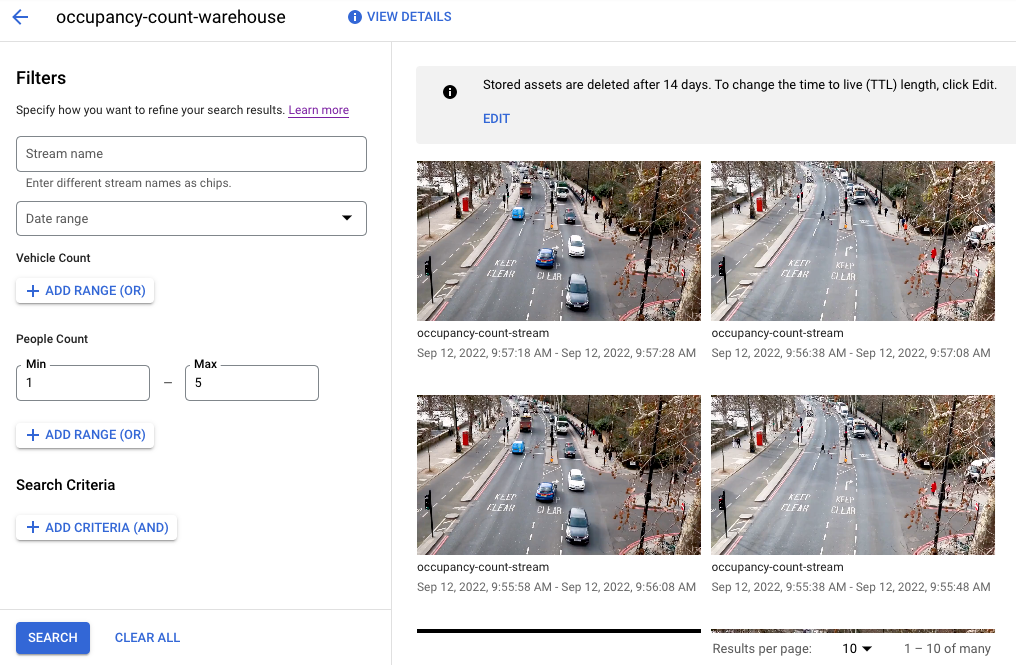 *A view of stored video data that matches search criteria in the Google Cloud console. Video credit:* [Elizabeth Mavor](https://pixabay.com/videos/id-21438/) on [Pixabay](https://pixabay.com/) (*search criteria applied*).
## Clean up
To avoid incurring charges to your Google Cloud account for the resources used in this
tutorial, either delete the project that contains the resources, or keep the project and
delete the individual resources.
### Delete the project
> [!CAUTION]
> **Caution** : Deleting a project has the following effects:
>
> - **Everything in the project is deleted.** If you used an existing project for the tasks in this document, when you delete it, you also delete any other work you've done in the project.
> - **Custom project IDs are lost.** When you created this project, you might have created a custom project ID that you want to use in the future. To preserve the URLs that use the project ID, such as an `appspot.com` URL, delete selected resources inside the project instead of deleting the whole project.
>
>
> If you plan to explore multiple architectures, tutorials, or quickstarts, reusing projects
> can help you avoid exceeding project quota limits.
1. In the Google Cloud console, go to the **Manage resources** page.
[Go to Manage resources](https://console.cloud.google.com/iam-admin/projects)
2. In the project list, select the project that you want to delete, and then click **Delete**.
3. In the dialog, type the project ID, and then click **Shut down** to delete the project.
### Delete individual resources
#### Delete Compute Engine VM instance
1. In the Google Cloud console, go to the **VM instances** page.
[Go to VM instances](https://console.cloud.google.com/compute/instances)
2. Select the checkbox for the instance that you want to delete.
3. To delete the instance, click **More actions** , click **Delete**, and then follow the instructions.
#### Delete a warehouse
1. In the Google Cloud console, go to the **Warehouses** page.
[Go to the Warehouses tab](https://console.cloud.google.com/ai/vision-ai/media-warehouse)
2. Locate your `occupancy-count-warehouse` warehouse.
3. To delete the warehouse, click **Actions** , click **Delete warehouse**, and then follow the instructions.
#### Delete a stream
1. In the Google Cloud console, go to the **Streams** page.
[Go to the Streams tab](https://console.cloud.google.com/ai/vision-ai/video-streams)
2. Locate your `occupancy-count-stream` stream.
3. To delete the stream, click **Actions** , click **Delete stream**, and then follow the instructions.
#### Delete an app
1. In the Google Cloud console, go to the **Applications** page.
[Go to the Applications tab](https://console.cloud.google.com/ai/vision-ai/applications)
> [!NOTE]
> **Note:** You must first undeploy your app before you can delete it.
2. Locate your `occupancy-count-app` app.
3. To delete the app, click **Actions** , click **Delete application**, and then follow the instructions.
## What's next
- Read more about [Responsible AI practices](https://ai.google/responsibilities/responsible-ai-practices/).
- Learn about other components you can add to an app in [Build an app](https://docs.cloud.google.com/vision-ai/docs/build-app.md.txt).
- Learn about other output storage and processing options in [Connect app output to a data destination](https://docs.cloud.google.com/vision-ai/docs/connect-data-destination.md.txt).
- Read about how to [Search Warehouse data in the console](https://docs.cloud.google.com/vision-ai/docs/search-streaming-warehouse.md.txt).
- Explore reference architectures, diagrams, and best practices about Google Cloud. Take a look at our [Cloud Architecture Center](https://docs.cloud.google.com/architecture).