> [!CAUTION]
> **Caution** : Document AI Warehouse is deprecated and will no longer be available on Google Cloud after January 16, 2025. To safeguard your data, migrate any documents currently saved in Document AI Warehouse to an alternative like Cloud Storage. Verify that your data migration is completed before the discontinuation date to prevent any data loss. See [Deprecations](https://docs.cloud.google.com/document-warehouse/docs/deprecations) for details.
> [!WARNING]
>
> **Preview**
>
>
> This feature is
>
> subject to the "Pre-GA Offerings Terms" in the General Service Terms section of the
> [Service Specific
> Terms](https://docs.cloud.google.com/terms/service-terms#1).
>
> Pre-GA features are available "as is" and might have limited support.
>
> For more information, see the
> [launch stage descriptions](https://cloud.google.com/products/#product-launch-stages).
> [!NOTE]
> This feature is subject to the [Data Processing and Security
> Terms](https://cloud.google.com/terms/data-processing-terms) and the [GenAI Trusted Tester Terms of Service](https://cloud.google.com/trustedtester/aitos).
Follow this guide to know how to work with the GenAI search feature and provison your project to access advanced features.
## Prerequisite: allowlist Google Cloud project
We recommended you use a project that has never provisioned Document AI Warehouse. You can follow [this guide](https://cloud.google.com/resource-manager/docs/creating-managing-projects) to create a new project.
Private preview features such as GenAI search require allowlisting.
For GenAI search, most TTP projects are already allowlisted. If you're in the TTP program and need to provision Document AI Warehouse for GenAI search in a different project:
- Fill out [this form](https://docs.google.com/forms/d/1WETvoadxz5PN47us4WPt1ag-3ain0OGku8bnf0JTErI) to allowlist your newly provisioned project for GenAI search.
- After being notified by the Document AI Warehouse team, be sure your admin email is added to the [GenAI Search-in-Warehouse Google group](https://groups.google.com/g/genaisearch-in-warehouse).
For other private preview features, such as the retention folders for records management and legal holds, contact your account manager for the allowlisting process and form.
## Provision Document AI Warehouse in a brand new project
1. Open Document AI Warehouse:
https://console.cloud.google.com/ai/docai-warehouse?project=
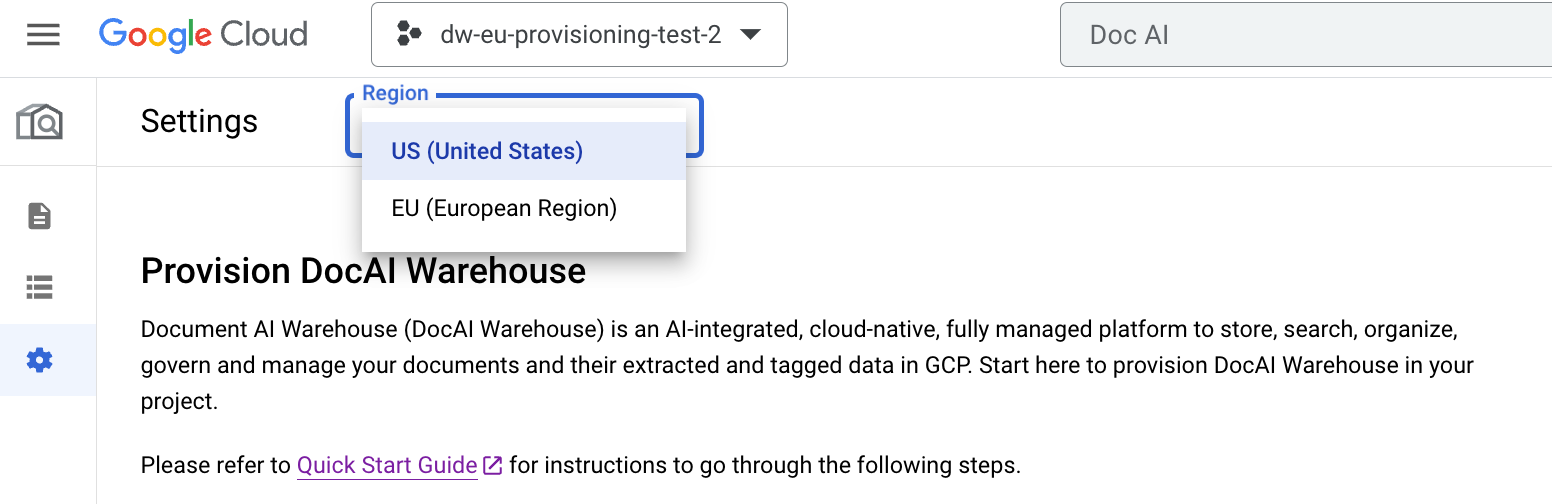
2. On the provisioning page, select **US (United States)**, where it's currently available.
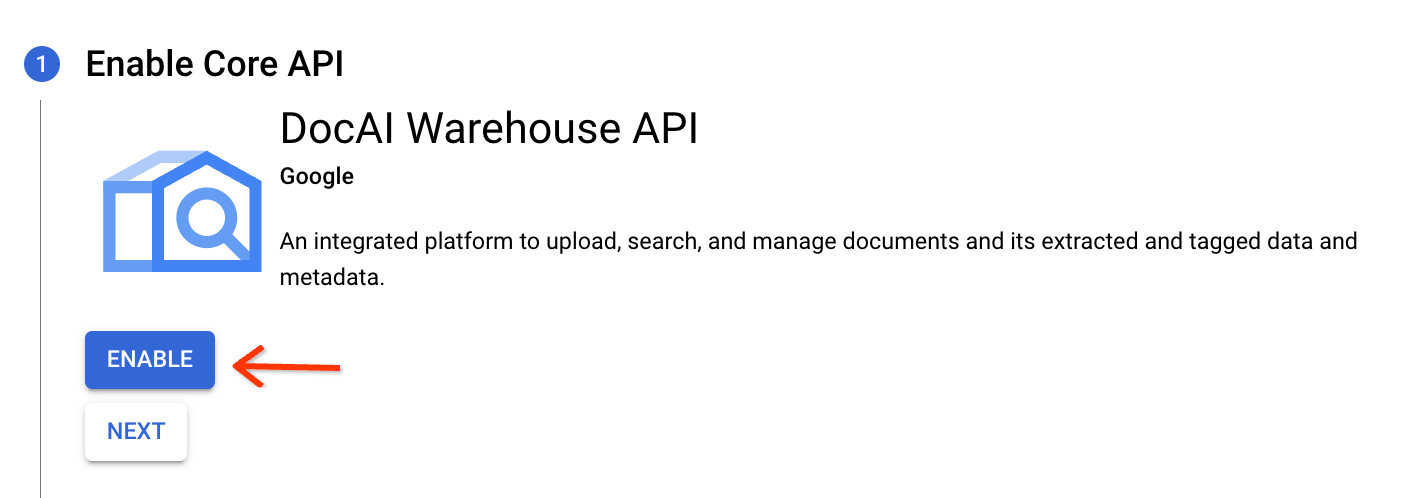
3. Enable the Document AI Warehouse API.
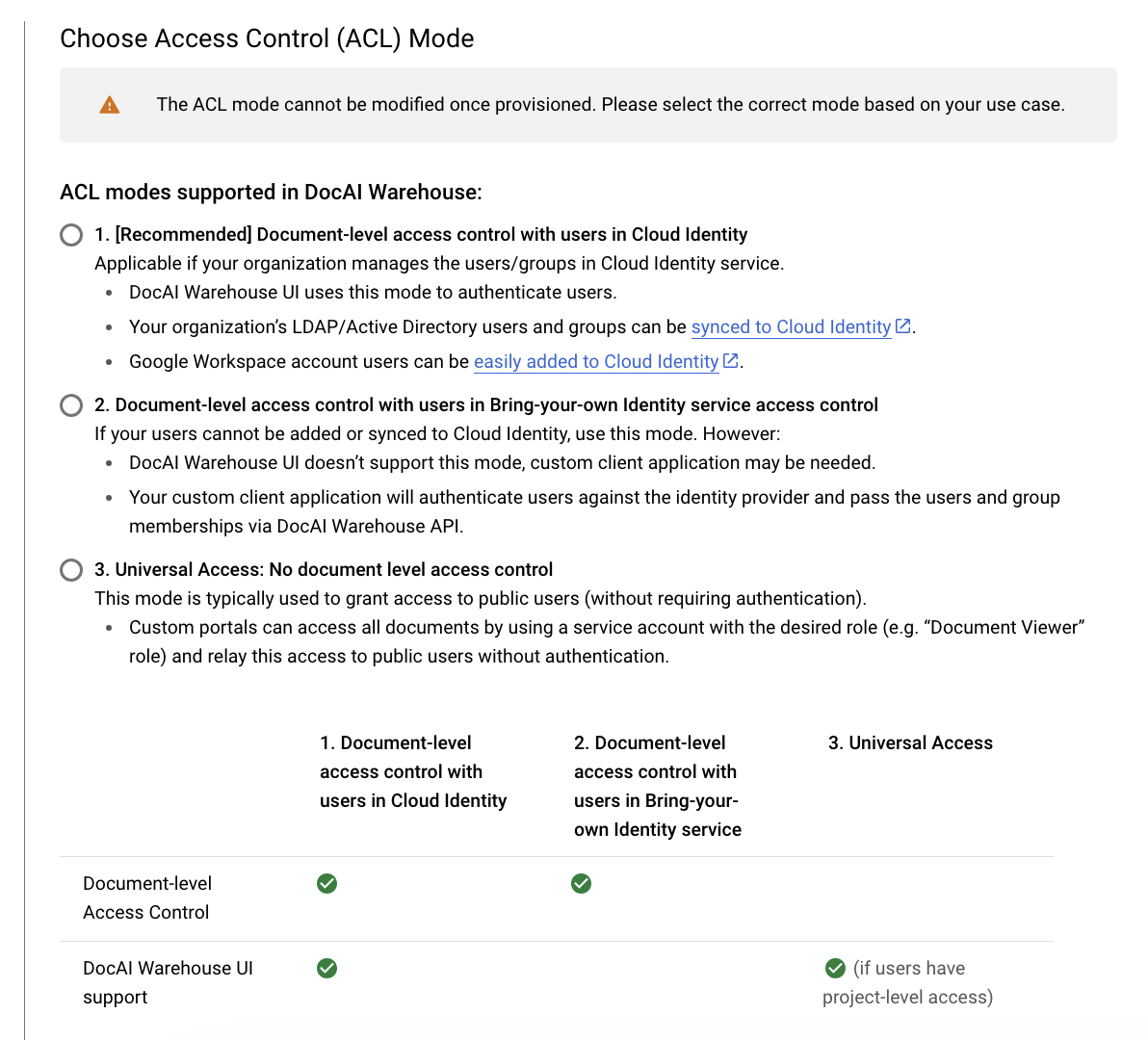
4. Select an access control (ACL) mode and enable GenAI. When choosing ACL mode, you can select either:
- Document-level access control with users in Cloud Identity.
- Universal access: no document-level access control.
> [!NOTE]
> **Note:** ACL mode cannot be changed after provisioning.
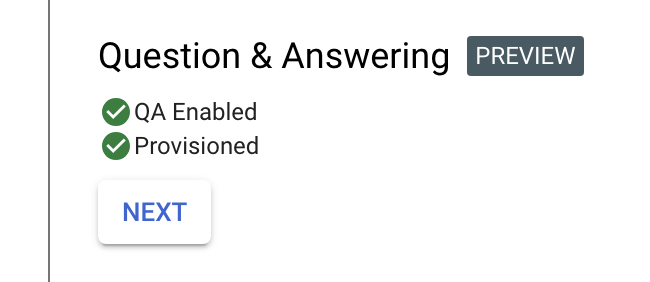
Ensure Question \& Answering is enabled:

5. Then click **Provision** to start provisioning your project. It takes three to five minutes to set up the instance.
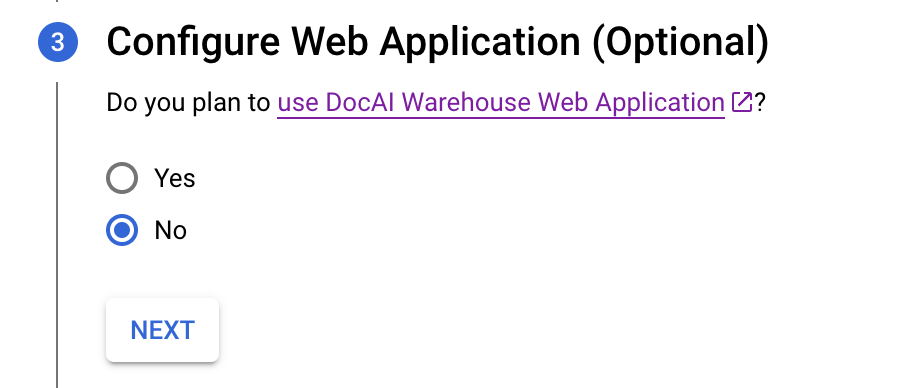
6. Skip the step to configure web application.
7. Create a default document schema that can be used for OCR extracted PDF or TXT files. It contains the raw text field for indexing but doesn't contain properties.
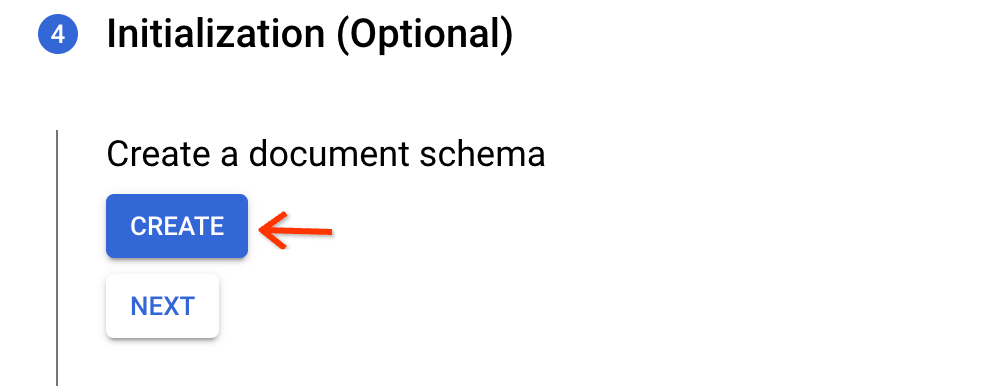
8. Click **Done** to complete.
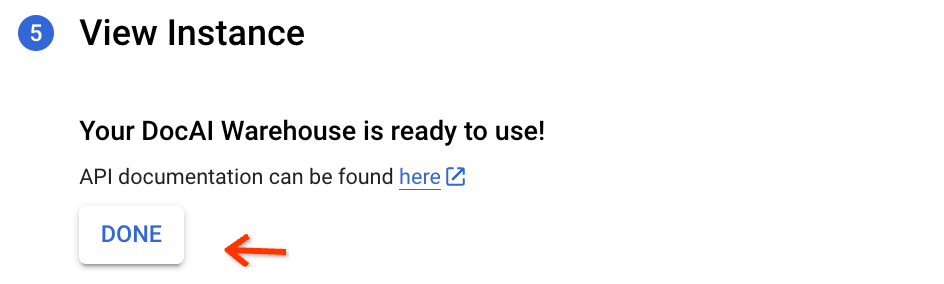
9. Click **Get Started** to go to the document view.

## Give users access to your project
### Allowlist your users for access to GenAI in search UI
Add the Google Cloud IAM based emails for your users to [this Google group](https://groups.google.com/g/genaiSearch-in-warehouse/?pli=1), so the users are allowlisted to use the GenAI search UI.
## Configure Schemas for structured documents (Optional)
If you have structured document types (for example invoices, tax forms, other structured document types) and plan to extract entities from your documents using specialized or custom Document AI Warehouse processors, you can setup complex schemas where the extracted Document AI entities can be mapped to "properties" in these schemas.
This should be done before starting the bulk upload job, which runs Document AI Warehouse processors to extract entities, maps entities to text, date, numeric, and enum properties in the schema you create and indexes these properties. This enables you to search or filter documents based on property values.
## Appendix
### Enable GenAI in a provisioned project
- In the final view of the provisioning, or in the settings tab, go to show details.
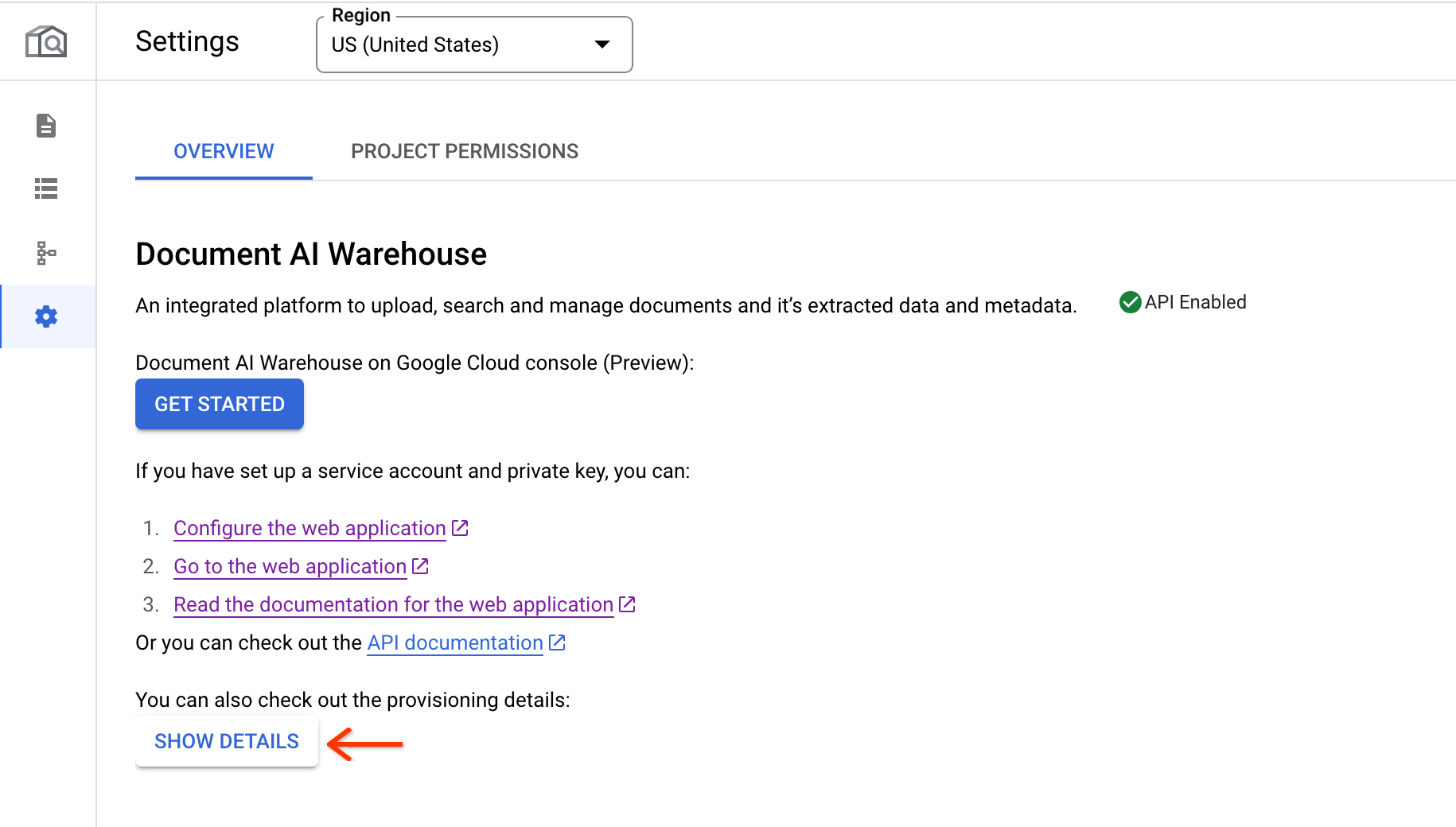
- Go to step 2, scroll down, and find the question and answer section. Mark the checkbox and update.
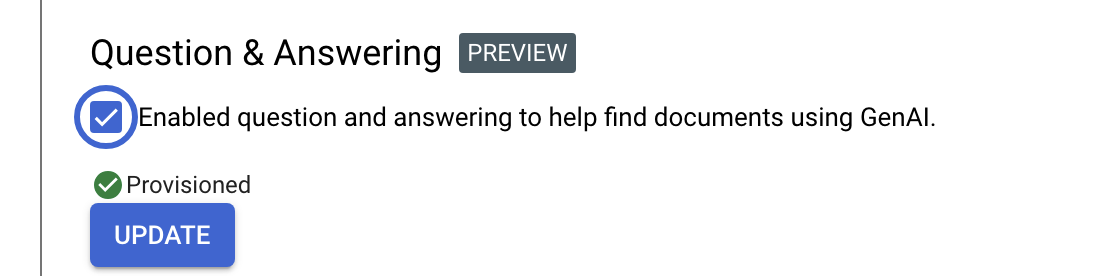
- It takes up to 5 minutes for the update to finish so do not close the window during the process. Once it is finished, the QA is enabled.
### Configure Document AI Warehouse web application (OneStack UI)
The web application is at a different URL (not in Google Cloud console) and
is needed only if you would like to use the advanced features including:
- Folders to organize documents.
- Edit document properties.
- Configure policies, rules, or other advanced features.
Follow the [configure web application](https://docs.cloud.google.com/document-warehouse/docs/administer-warehouse) guide to set up the web application.
## Next steps
- Follow the steps to [Upload documents in Google Cloud console](https://docs.cloud.google.com/document-warehouse/docs/gcc-upload-documents).
- Follow instructions on the [GenAI search product documentation](https://docs.cloud.google.com/document-warehouse/docs/genai-search-guide) to run searches.