# Work with sessions
[Sessions](https://docs.cloud.google.com/bigquery/docs/sessions-intro) in BigQuery let you maintain
state---such as temporary tables, temporary functions, and variables---across
multiple SQL queries. You can create, run queries in, list, and terminate
sessions in the Google Cloud console, the bq command-line tool, or the
BigQuery API.
Before you complete these steps, make sure that you have the necessary
[permissions](https://docs.cloud.google.com/bigquery/docs/sessions-intro#roles_and_permissions).
## Create a session
If you would like to capture a group of your SQL activities, create a
BigQuery session. After creating a session, you can run
interactive queries in your session until the session
[terminates](https://docs.cloud.google.com/bigquery/docs/sessions#terminate-session). All queries in the session
are run (processed) in the location where the session was created.
### Console
In the Google Cloud console, each session is assigned to an editor tab.
1. In the Google Cloud console, go to the **BigQuery** page.
[Go to BigQuery](https://console.cloud.google.com/bigquery)
2. Click **Compose new query**. A
new editor tab opens.
3. Click **Edit** \> **Query settings** . The **Query settings** panel
appears.
4. In the **Session management** section, click **Use session mode** to
enable the session mode.
5. In **Additional settings \> Data location**, select the
location. After the session is created, all queries in the session are
restricted to this location and the location cannot be changed.
6. Click **Save**.
7. [Write a query in the editor tab](https://docs.cloud.google.com/bigquery/docs/sessions-write-queries)
and run it. The new session is created after this first query is run.
### bq
Open the [Cloud Shell](https://console.cloud.google.com/bigquery?cloudshell=true)
and enter the following
[`bq query`](https://docs.cloud.google.com/bigquery/docs/reference/bq-cli-reference#bq_query) command:
```bash
bq query \
--nouse_legacy_sql \
--create_session
[--location 'SESSION_LOCATION'] \
'SQL_STATEMENT'
```
where:
- SESSION_LOCATION: Bind the session to a [physical location](https://docs.cloud.google.com/bigquery/docs/locations). Restrict all queries in the session to this location. Optional.
- SQL_STATEMENT: The first SQL statement for your session.
Your session ID is returned with the results of the query.
### API
Call the
[`jobs.query`](https://docs.cloud.google.com/bigquery/docs/reference/rest/v2/jobs/query) method with
the following parameters:
```json
{
"query": "SQL_STATEMENT",
"createSession": true,
["location": "SESSION_LOCATION"]
}
```
where:
- SQL_STATEMENT: The first SQL statement for your session.
- SESSION_LOCATION: Bind the session to a [physical location](https://docs.cloud.google.com/bigquery/docs/locations). Restrict all queries in the session to this location. Optional.
The response body is similar to the following:
{
"jobReference": {
"projectId": "myProject",
"jobId": "job_123"
},
"statistics": {
"sessionInfo": {
"sessionId": "CgwKCmZhbGl1LXRlc3QQARokMDAzYjI0OWQtZ"
}
}
}
## Run a query in a session
After you create a session, you can run queries in that session:
### Console
1. In the Google Cloud console, go to the BigQuery page.
[Go to BigQuery](https://console.cloud.google.com/bigquery)
2. Click the editor tab that contains the session.
3. Add your query to the session and click **Run**.
### bq
Open the [Cloud Shell](https://console.cloud.google.com/bigquery?cloudshell=true)
and enter the following
[`bq query`](https://docs.cloud.google.com/bigquery/docs/reference/bq-cli-reference#bq_query) command:
```bash
bq query \
--nouse_legacy_sql \
--session_id=SESSION_ID \
'SQL_STATEMENT'
```
where:
- SESSION_ID: Replace this with the [ID of the session](https://docs.cloud.google.com/bigquery/docs/sessions#get-id) you want to work with.
- SQL_STATEMENT: A SQL statement to run in your session.
The results of the query are followed by your session ID.
If you are going to run lots of queries with the Cloud Shell,
you can add your session ID to `[query]` in
[`.bigqueryrc`](https://docs.cloud.google.com/bigquery/docs/bq-command-line-tool#adding_flags_to_bigqueryrc)
so that you don't need to copy and paste the session ID into each command.
This is what a session ID looks like in `.bigqueryrc`:
[query]
--session_id=CgwKCmZhbGl1LXRlc3QQARokMDAzYjI0OWQtZ
After you've added the session ID to `.bigqueryrc`, you can omit the
`--session_id` flag from the `bq query` command. If you want to use a
different session or if a session
terminates, you must update your `.bigqueryrc` file.
### API
Call the
[`jobs.query`](https://docs.cloud.google.com/bigquery/docs/reference/rest/v2/jobs/query) method with
the following parameters:
```json
{
"query": "SQL_STATEMENT",
"connectionProperties": [{
"key": "session_id",
"value": "SESSION_ID"
}]
}
```
where:
- SQL_STATEMENT: The first SQL statement for your session.
- SESSION_ID: The [ID of the session](https://docs.cloud.google.com/bigquery/docs/sessions#get-id).
## Terminate a session
A session can be terminated manually or automatically.
The history of a terminated session is available for 20 days after termination.
### Auto-terminate a session
A session is terminated
automatically after 24 hours of inactivity or after 7 days, whichever happens
first.
### Terminate the current session
You can terminate your current session with a SQL statement or in the
Google Cloud console, if the session was created there.
### Console
1. In the Google Cloud console, go to the BigQuery page.
[Go to BigQuery](https://console.cloud.google.com/bigquery)
2. Find the editor tab that contains your session and close it. The session is terminated.
### SQL
Do the following to terminate your session:
1. In the Google Cloud console, go to the **BigQuery** page.
[Go to BigQuery](https://console.cloud.google.com/bigquery)
2. In the query editor, enter the following statement:
```googlesql
CALL BQ.ABORT_SESSION();
```
3. Click **Run**.
For more information about how to run queries, see [Run an interactive query](https://docs.cloud.google.com/bigquery/docs/running-queries#queries).
### Terminate a session by ID
You can terminate a session using its ID. You don't need to be
in the session to terminate it this way.
[Get the session ID](https://docs.cloud.google.com/bigquery/docs/sessions#get-id), and then run the following statement:
```googlesql
CALL BQ.ABORT_SESSION(SESSION_ID);
```
Replace SESSION_ID with the ID of the session to terminate.
## Get the ID of your active session
In some situations, you need to reference a session to continue working within
it. For example, if you are working with the Cloud Shell, you must include
the session ID each time you run a command for that session.
### Console
You don't need to provide the session ID to run a new query inside a session
in the Google Cloud console. You can just continue working in the
editor tab that contains the session. However, if you would like to reference
your session in the Cloud Shell or an API call, you need to know the ID
for the session you created in the console.
Before you complete these steps, make sure that you have run at least one
query in an active session.
1. In the Google Cloud console, go to the **BigQuery** page.
[Go to BigQuery](https://console.cloud.google.com/bigquery)
2. Click the editor tab that contains the session.
3. In **Query results** , click **Job information**.
4. In the **Job information** list, search for the session ID:
Session ID: CgwKCmZhbGl1LXRlc3QQARokMDAzYjI0OWQtZ
### bq
To run query commands in a session within the Cloud Shell, you need to
include the session ID in the command. You can get the session ID when you
[create a session](https://docs.cloud.google.com/bigquery/docs/sessions#create-session) or by
[listing your sessions](https://docs.cloud.google.com/bigquery/docs/sessions#list-sessions).
When you create a session with the Cloud Shell, the session ID that is
returned is similar to the following:
In session: CgwKCmZhbGl1LXRlc3QQARokMDAzYjI0OWQtZ
### API
To pass SQL commands into a session with an API call, you need to include
the session ID in the API call. You can get the session ID when you
[create a session](https://docs.cloud.google.com/bigquery/docs/sessions#create-session) or by
[listing your sessions](https://docs.cloud.google.com/bigquery/docs/sessions#list-sessions).
When you create a session with an API call, the session ID in the response
looks similar to the following:
sessionId: CgwKCmZhbGl1LXRlc3QQARokMDAzYjI0OWQtZ
## List active and inactive sessions
To get session IDs of active and inactive sessions, follow these steps:
### Console
1. In the Google Cloud console, go to the **BigQuery** page.
[Go to BigQuery](https://console.cloud.google.com/bigquery)
2. In the left pane, click **Explorer**:

If you don't see the left pane, click **Expand left pane** to open the pane.
3. In the **Explorer** pane, click **Job history**.
4. Select the type of job history:
- To display information of your recent jobs, click **Personal history**.
- To display information of recent jobs in your project, click **Project
history**.
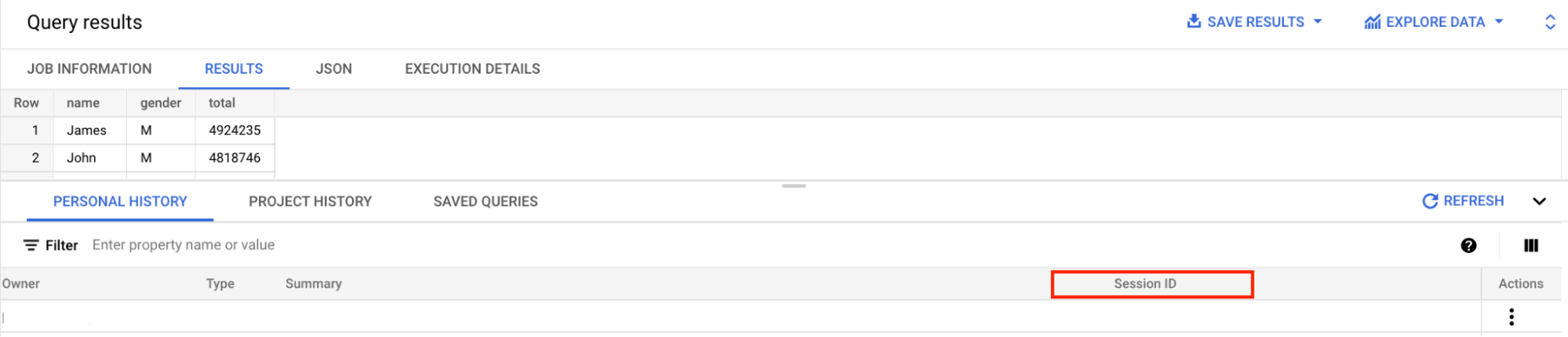
5. In the **Session ID** column, you can view session IDs for your jobs.
### SQL
To get a list of your three most recent sessions including the active and
terminated sessions, run the following query in the editor tab:
1. In the Google Cloud console, go to the **BigQuery** page.
[Go to BigQuery](https://console.cloud.google.com/bigquery)
2. In the query editor, enter the following statement:
```googlesql
SELECT
session_id,
MAX(creation_time) AS last_modified_time
FROM `region-REGION_NAME`.INFORMATION_SCHEMA.SESSIONS_BY_USER>
WHERE
session_id IS NOT NULL
AND creation_time > TIMESTAMP_SUB(CURRENT_TIMESTAMP(), INTERVAL 20 DAY)
GROUP BY session_id
ORDER BY last_modified_time DESC;
```
Replace REGION_NAME with the name of the region in which to list
sessions.
3. Click **Run**.
For more information about how to run queries, see [Run an interactive query](https://docs.cloud.google.com/bigquery/docs/running-queries#queries).
The result is similar to the following:
```
+---+
| session_id | last_modified_time |
+---+
| CgwKCmZhbGl1LXRlc3QQARokMGQ5YWWYzZmE0YjhkMDBm | 2021-06-01 23:04:26 |
| CgwKCmZhbGl1LXRlc3QQARokMDAzYjI0OWQtZTczwZjA1NDc2 | 2021-05-30 22:43:02 |
| CgwKCmZhbGl1LXRlc3QQY2MzLTg4ZDEtYzVhOWZiYmM5NzZk | 2021-04-07 22:31:21 |
+---+
```
## View the history of a session
A session captures your SQL activities within a timeframe. This information is
stored in the session's history. Session history lets you track changes you've
made in the session. If a job fails or succeeds, it is recorded in the
session history so you can go back later and see what you did.
### Console
To view the history of a session in the Google Cloud console, you can filter
your **Personal History** or **Project History** by session ID to view all
SQL queries run in a specific session.
1. In the Google Cloud console, go to the BigQuery page.
[Go to BigQuery](https://console.cloud.google.com/bigquery)
2. In the left pane, click **Explorer**:

3. In the **Explorer** pane, click **Job history**.
4. Select the type of job history you want to view:
- To display information of your recent jobs, click **Personal history**.
- To display information of recent jobs in your project, click **Project history**.
5. Click **Filter** and then
select **Session ID**.
6. In the **Session ID** field, search for the session ID:
Session ID: CgwKCmZhbGl1LXRlc3QQARokMDAzYjI0OWQtZ
### SQL
To view historical data for a specific session, first
[get your session ID](https://docs.cloud.google.com/bigquery/docs/sessions#get-id), then follow these
steps:
1. In the Google Cloud console, go to the **BigQuery** page.
[Go to BigQuery](https://console.cloud.google.com/bigquery)
2. In the query editor, enter the following statement:
```googlesql
SELECT
*
FROM
`region-REGION_NAME`.INFORMATION_SCHEMA.SESSIONS_BY_USER
WHERE
session_info.session_id = 'SESSION_ID';
```
Replace the following:
- REGION_NAME: the name of the region in which to view session data
- SESSION_ID: the ID of the session for which to retrieve historical data
3. Click **Run**.
For more information about how to run queries, see [Run an interactive query](https://docs.cloud.google.com/bigquery/docs/running-queries#queries).
#### Example
The following returns the history for a session that has the session ID
`CgwKCmZhbGl1LXRlc3QQARokMDAzYjI0`. You can replace this session ID with your
own.
```googlesql
SELECT
creation_time, query
FROM
`region-REGION_NAME`.INFORMATION_SCHEMA.JOBS_BY_USER
WHERE
session_info.session_id = 'CgwKCmZhbGl1LXRlc3QQARokMDAzYjI0'
AND creation_time > TIMESTAMP_SUB(CURRENT_TIMESTAMP(), INTERVAL 20 DAY);
```
The result is similar to the following:
+---+---+
| creation_time | query |
+---+---+
| 2021-06-01 23:04:26 | SELECT * FROM Purchases; |
| 2021-06-01 23:02:51 | CREATE TEMP TABLE Purchases(total INT64) AS SELECT * FROM UNNEST([10,23,3,14,55]) AS a; |
+---+---+
## What's next
- See the [Introduction to sessions](https://docs.cloud.google.com/bigquery/docs/sessions-intro).
- Learn more about [writing queries in sessions](https://docs.cloud.google.com/bigquery/docs/sessions-write-queries).