# Load Amazon S3 data into BigQuery
You can load data from Amazon S3 to BigQuery using the
[BigQuery Data Transfer Service](https://docs.cloud.google.com/bigquery/docs/dts-introduction.md.txt) for Amazon S3
connector. With the
BigQuery Data Transfer Service, you can schedule recurring transfer jobs that
add your latest data from Amazon S3 to
BigQuery.
To learn about how an Amazon S3 transfer works, see
[Introduction to Amazon S3 data transfers](https://docs.cloud.google.com/bigquery/docs/s3-transfer-intro.md.txt).
## Limitations
Amazon S3 data transfers are subject to the following limitations:
- The bucket portion of the Amazon S3 URI can't be parameterized.
- Data transfers from Amazon S3 with the **Write disposition** parameter set to `WRITE_TRUNCATE` will transfer all matching files to Google Cloud during each run. This may result in additional Amazon S3 outbound data transfer costs. For more information on which files are transferred during a run, see [Impact of prefix matching versus wildcard matching](https://docs.cloud.google.com/bigquery/docs/s3-transfer.md.txt#matching).
- Data transfers from AWS GovCloud (`us-gov`) regions aren't supported.
- Data transfers to [BigQuery Omni locations](https://docs.cloud.google.com/bigquery/docs/omni-introduction.md.txt#locations) aren't supported.
- Depending on the format of your Amazon S3 source data, there may be
additional limitations. For more information, see the following resources:
- [CSV limitations](https://docs.cloud.google.com/bigquery/docs/loading-data-cloud-storage-csv.md.txt#limitations)
- [JSON limitations](https://docs.cloud.google.com/bigquery/docs/loading-data-cloud-storage-json.md.txt#limitations)
- [Limitations on nested and repeated data](https://docs.cloud.google.com/bigquery/docs/nested-repeated.md.txt#limitations)
- The minimum interval time between recurring data transfers is 1 hour. The
default interval for a recurring data transfer is 24 hours.
- Amazon S3 data transfers are supported by the same Amazon S3
region limitations as the Storage Transfer Service. For more information, see
[Supported regions](https://docs.cloud.google.com/storage-transfer/docs/source-amazon-s3.md.txt#supported_regions).
## Before you begin
Before you create an Amazon S3 data transfer:
- Verify that you have completed all actions required to [enable the BigQuery Data Transfer Service](https://docs.cloud.google.com/bigquery/docs/enable-transfer-service.md.txt).
- [Create a BigQuery dataset](https://docs.cloud.google.com/bigquery/docs/datasets.md.txt) to store your data.
- [Create the destination table](https://docs.cloud.google.com/bigquery/docs/tables.md.txt#create_an_empty_table_with_a_schema_definition) for your data transfer and specify the schema definition. The destination table must follow the [table naming rules](https://docs.cloud.google.com/bigquery/docs/tables.md.txt#table_naming). Destination table names also support [parameters](https://docs.cloud.google.com/bigquery/docs/s3-transfer-parameters.md.txt). You can create a BigQuery table or [create Iceberg managed table](https://docs.cloud.google.com/bigquery/docs/iceberg-tables#create-iceberg-tables).
- Retrieve your Amazon S3 URI, your access key ID, and your secret access key. For information on managing your access keys, see the [AWS documentation](https://docs.aws.amazon.com/general/latest/gr/managing-aws-access-keys.html).
- If you intend to set up transfer run notifications for Pub/Sub, you must have `pubsub.topics.setIamPolicy` permissions. Pub/Sub permissions are not required if you just set up email notifications. For more information, see [BigQuery Data Transfer Service run notifications](https://docs.cloud.google.com/bigquery/docs/transfer-run-notifications.md.txt).
- If you plan on specifying a customer-managed encryption key (CMEK), ensure that your [service account has permissions to encrypt and decrypt](https://docs.cloud.google.com/bigquery/docs/customer-managed-encryption.md.txt#grant_permission), and that you have the [Cloud KMS key resource ID](https://docs.cloud.google.com/bigquery/docs/customer-managed-encryption.md.txt#key_resource_id) required to use CMEK. For information about how CMEK works with the BigQuery Data Transfer Service, see [Specify encryption key with transfers](https://docs.cloud.google.com/bigquery/docs/s3-transfer.md.txt#CMEK).
## Required permissions
Ensure that you have granted the following permissions.
### Required BigQuery roles
To get the permissions that
you need to create a BigQuery Data Transfer Service data transfer,
ask your administrator to grant you the
[BigQuery Admin](https://docs.cloud.google.com/iam/docs/roles-permissions/bigquery.md.txt#bigquery.admin) (`roles/bigquery.admin`) IAM role on your project.
For more information about granting roles, see [Manage access to projects, folders, and organizations](https://docs.cloud.google.com/iam/docs/granting-changing-revoking-access.md.txt).
This predefined role contains
the permissions required to create a BigQuery Data Transfer Service data transfer. To see the exact permissions that are
required, expand the **Required permissions** section:
#### Required permissions
The following permissions are required to create a BigQuery Data Transfer Service data transfer:
- BigQuery Data Transfer Service permissions:
- `bigquery.transfers.update`
- `bigquery.transfers.get`
- BigQuery permissions:
- `bigquery.datasets.get`
- `bigquery.datasets.getIamPolicy`
- `bigquery.datasets.update`
- `bigquery.datasets.setIamPolicy`
- `bigquery.jobs.create`
You might also be able to get
these permissions
with [custom roles](https://docs.cloud.google.com/iam/docs/creating-custom-roles.md.txt) or
other [predefined roles](https://docs.cloud.google.com/iam/docs/roles-overview.md.txt#predefined).
For more information, see [Grant `bigquery.admin` access](https://docs.cloud.google.com/bigquery/docs/enable-transfer-service.md.txt#grant_bigqueryadmin_access).
### Required Amazon S3 roles
Consult the documentation for Amazon S3 to ensure you have configured
any permissions necessary to enable the data transfer. At a minimum, the
Amazon S3 source data must have the AWS managed policy
[`AmazonS3ReadOnlyAccess`](https://docs.aws.amazon.com/IAM/latest/UserGuide/access_policies_manage.html#attach-managed-policy-console) applied to it.
## Set up an Amazon S3 data transfer
To create an Amazon S3 data transfer:
### Console
1. Go to the Data transfers page in the Google Cloud console.
[Go to Data transfers](https://console.cloud.google.com/bigquery/transfers)
2. Click **Create transfer**.
3. On the **Create Transfer** page:
- In the **Source type** section, for **Source** , choose **Amazon S3**.

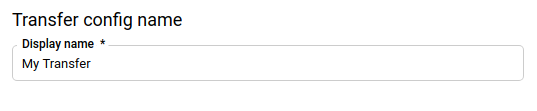
- In the **Transfer config name** section, for **Display name** , enter a
name for the transfer such as `My Transfer`. The transfer name can be
any value that lets you identify the transfer if you need to modify it
later.
- In the **Schedule options** section:
- Select a **Repeat frequency** . If you select **Hours** , **Days** ,
**Weeks** , or **Months** , you must also specify a frequency. You can
also select **Custom** to create a more specific repeat frequency.
If you select **On-demand** , then this data transfer only runs when
you
[manually trigger the transfer](https://docs.cloud.google.com/bigquery/docs/working-with-transfers.md.txt#manually_trigger_a_transfer).
- If applicable, select either **Start now** or **Start at set time**,
and provide a start date and run time.
- In the **Destination settings** section:
- For **Dataset** , select the dataset that you created to store your data. 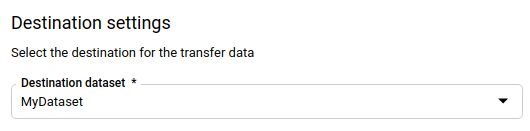
- Select **Native table** if you want to transfer to a BigQuery table.
- Select **Iceberg Managed** if you want to transfer to an Iceberg managed table.
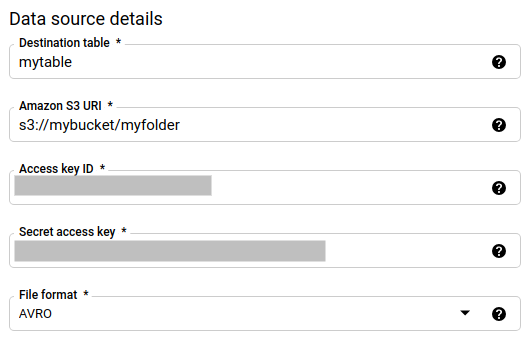
- In the **Data source details** section:
- For **Destination table** , enter the name of the table that you created to store the data in BigQuery. Destination table names support [parameters](https://docs.cloud.google.com/bigquery/docs/s3-transfer-parameters.md.txt).
- For **Amazon S3 URI** , enter the URI with the format `s3://mybucket/myfolder/...`. URIs also support [parameters](https://docs.cloud.google.com/bigquery/docs/s3-transfer-parameters.md.txt).
- For **Access key ID**, enter your access key ID.
- For **Secret access key**, enter your secret access key.
- For **File format** choose your data format (newline delimited JSON, CSV, Avro, Parquet, or ORC).
- For **Write Disposition** , choose one of the following:
- **`WRITE_APPEND`** to incrementally append new data to your existing destination table. **`WRITE_APPEND`** is the default value for Write preference.
- **`WRITE_TRUNCATE`** to overwrite data in the destination table during each data transfer run.
For more information about how BigQuery Data Transfer Service ingests
data using either **`WRITE_APPEND`** or **`WRITE_TRUNCATE`** , see
[Data ingestion for Amazon S3 transfers](https://docs.cloud.google.com/bigquery/docs/s3-transfer-intro.md.txt#data-ingestion).
For more information about the `writeDisposition` field, see
[`JobConfigurationLoad`](https://docs.cloud.google.com/bigquery/docs/reference/rest/v2/Job.md.txt#jobconfigurationload).
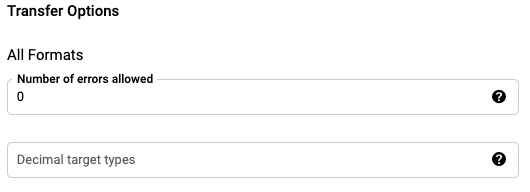
- In the **Transfer options - all formats** section:
- For **Number of errors allowed**, enter an integer value for the maximum number of bad records that can be ignored.
- (Optional) For **Decimal target types** , enter a comma-separated list of possible SQL data types that the source decimal values could be converted to. Which SQL data type is selected for conversion depends on the following conditions:
- The data type selected for conversion will be the first data type in the following list that supports the precision and scale of the source data, in this order: NUMERIC, [BIGNUMERIC](https://docs.cloud.google.com/bigquery/docs/reference/standard-sql/data-types.md.txt#numeric_types), and STRING.
- If none of the listed data types will support the precision and the scale, the data type supporting the widest range in the specified list is selected. If a value exceeds the supported range when reading the source data, an error will be thrown.
- The data type STRING supports all precision and scale values.
- If this field is left empty, the data type will default to "NUMERIC,STRING" for ORC, and "NUMERIC" for the other file formats.
- This field cannot contain duplicate data types.
- The order of the data types that you list in this field is ignored.
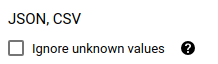
- If you chose CSV or JSON as your file format, in the **JSON,CSV**
section, check **Ignore unknown values** to accept rows that contain
values that don't match the schema. Unknown values are ignored. For
CSV files, this option ignores extra values at the end of a line.
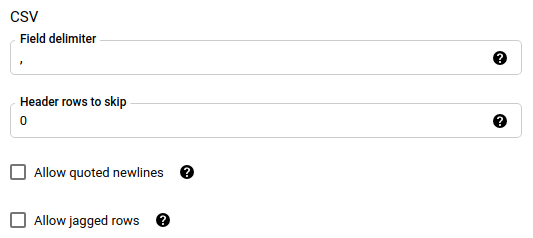
- If you chose CSV as your file format, in the **CSV** section enter any
additional [CSV options](https://docs.cloud.google.com/bigquery/docs/loading-data-cloud-storage-csv.md.txt#csv-options)
for loading data.
- In the **Service Account** menu, select a
[service account](https://docs.cloud.google.com/iam/docs/service-account-overview.md.txt)
from the service accounts associated with your
Google Cloud project. You can associate a service account with
your data transfer instead of using your user credentials. For more
information about using service accounts with data transfers, see
[Use service accounts](https://docs.cloud.google.com/bigquery/docs/use-service-accounts.md.txt).
- If you signed in with a [federated identity](https://docs.cloud.google.com/iam/docs/workforce-identity-federation.md.txt), then a service account is required to create a data transfer. If you signed in with a [Google Account](https://docs.cloud.google.com/iam/docs/principals-overview.md.txt#google-account), then a service account for the data transfer is optional.
- The service account must have the [required permissions](https://docs.cloud.google.com/bigquery/docs/s3-transfer.md.txt#required_permissions).
- If you use [CMEKs](https://docs.cloud.google.com/bigquery/docs/customer-managed-encryption.md.txt), in the
**Advanced options** section, select **Customer-managed key**. A list of
your available CMEKs appears for you to choose from.
- (Optional) In the **Notification options** section:
- Click the toggle to enable email notifications. When you enable this option, the transfer administrator receives an email notification when a data transfer run fails.
- For **Select a Pub/Sub topic** , choose your [topic](https://docs.cloud.google.com/pubsub/docs/overview.md.txt#types) name or click **Create a topic** to create one. This option configures Pub/Sub run [notifications](https://docs.cloud.google.com/bigquery/docs/transfer-run-notifications.md.txt) for your data transfer.
4. Click **Save**.
### bq
Enter the `bq mk` command and supply the transfer creation flag ---
`--transfer_config`.
```bash
bq mk \
--transfer_config \
--project_id=project_id \
--data_source=data_source \
--display_name=name \
--target_dataset=dataset \
--service_account_name=service_account \
--destination_kms_key=destination_key \
--params='parameters'
```
Where:
- project_id: Optional. Your Google Cloud project ID. If `--project_id` isn't supplied to specify a particular project, the default project is used.
- data_source: Required. The data source --- `amazon_s3`.
- display_name: Required. The display name for the data transfer configuration. The transfer name can be any value that lets you identify the transfer if you need to modify it later.
- dataset: Required. The target dataset for the data transfer configuration.
- service_account: The service account name used to authenticate your data transfer. The service account should be owned by the same `project_id` used to create the data transfer and it should have all of the [required permissions](https://docs.cloud.google.com/bigquery/docs/s3-transfer.md.txt#required_permissions).
- destination_key: Optional. The [Cloud KMS key resource ID](https://docs.cloud.google.com/bigquery/docs/customer-managed-encryption.md.txt#key_resource_id)--- for example, `projects/project_name/locations/us/keyRings/key_ring_name/cryptoKeys/key_name`.
- parameters: Required. The parameters for the created transfer
configuration in JSON format. For example:
`--params='{"param":"param_value"}'`. The following are the parameters for
an Amazon S3 transfer:
- destination_table_name_template: Required. The name of your destination table.
- data_path: Required. The Amazon S3 URI, in the following
format:
`s3://mybucket/myfolder/...`
URIs also support
[parameters](https://docs.cloud.google.com/bigquery/docs/s3-transfer-parameters.md.txt).
- access_key_id: Required. Your access key ID.
- secret_access_key: Required. Your secret access key.
- file_format: Optional. Indicates the type of files you want
to transfer: `CSV`, `JSON`, `AVRO`, `PARQUET`, or `ORC`. The default
value is `CSV`.
- write_disposition: Optional. `WRITE_APPEND` will transfer
only the files which have been modified since the previous successful run. `WRITE_TRUNCATE` will transfer all matching files, including files that were transferred in a previous run. The default is `WRITE_APPEND`.
- max_bad_records: Optional. The number of allowed bad
records. The default is `0`.
- decimal_target_types: Optional. A comma-separated list of
possible SQL data types that the source decimal values could be
converted to. If this field is not provided, the data type defaults
to "NUMERIC,STRING" for ORC, and "NUMERIC" for the other file formats.
- ignore_unknown_values: Optional, and ignored if
file_format is not `JSON` or `CSV`. Whether to ignore
unknown values in your data.
- field_delimiter: Optional, and applies only when
`file_format` is `CSV`. The character that separates fields. The
default value is a comma.
- skip_leading_rows: Optional, and applies only when
file_format is `CSV`. Indicates the number of header rows
you don't want to import. The default value is `0`.
- allow_quoted_newlines: Optional, and applies only when
file_format is `CSV`. Indicates whether to allow newlines
within quoted fields.
- allow_jagged_rows: Optional, and applies only when
file_format is `CSV`. Indicates whether to accept rows
that are missing trailing optional columns. The missing values will
be filled in with NULLs.
> [!CAUTION]
> **Caution:** You cannot configure notifications using the command-line tool.
For example, the following command creates an Amazon S3 data transfer named
`My Transfer` using a `data_path` value of
`s3://mybucket/myfile/*.csv`, target dataset `mydataset`, and `file_format`
`CSV`. This example includes non-default values for the optional params
associated with the `CSV` file_format.
The data transfer is created in the default project:
bq mk --transfer_config \
--target_dataset=mydataset \
--display_name='My Transfer' \
--params='{"data_path":"s3://mybucket/myfile/*.csv",
"destination_table_name_template":"MyTable",
"file_format":"CSV",
"write_disposition":"WRITE_APPEND",
"max_bad_records":"1",
"ignore_unknown_values":"true",
"field_delimiter":"|",
"skip_leading_rows":"1",
"allow_quoted_newlines":"true",
"allow_jagged_rows":"false"}' \
--data_source=amazon_s3
After running the command, you receive a message like the following:
`[URL omitted] Please copy and paste the above URL into your web browser and
follow the instructions to retrieve an authentication code.`
Follow the instructions and paste the authentication code on the command
line.
> [!CAUTION]
> **Caution:** When you create an Amazon S3 data transfer using the command-line tool, the transfer configuration is set up using the default value for **Schedule** (every 24 hours).
### API
Use the [`projects.locations.transferConfigs.create`](https://docs.cloud.google.com/bigquery/docs/reference/datatransfer/rest/v1/projects.locations.transferConfigs/create.md.txt)
method and supply an instance of the [`TransferConfig`](https://docs.cloud.google.com/bigquery/docs/reference/datatransfer/rest/v1/projects.locations.transferConfigs.md.txt#TransferConfig)
resource.
### Java
Before trying this sample, follow the Java setup instructions in the
[BigQuery quickstart using
client libraries](https://docs.cloud.google.com/bigquery/docs/quickstarts/quickstart-client-libraries).
For more information, see the
[BigQuery Java API
reference documentation](https://docs.cloud.google.com/java/docs/reference/google-cloud-bigquery/latest/overview).
To authenticate to BigQuery, set up Application Default Credentials.
For more information, see
[Set up authentication for client libraries](https://docs.cloud.google.com/bigquery/docs/authentication.md.txt#client-libs).
```java
import com.google.api.gax.rpc.ApiException;
import com.google.cloud.bigquery.datatransfer.v1.CreateTransferConfigRequest;
import com.google.cloud.bigquery.datatransfer.v1.DataTransferServiceClient;
import com.google.cloud.bigquery.datatransfer.v1.ProjectName;
import com.google.cloud.bigquery.datatransfer.v1.TransferConfig;
import com.google.protobuf.Struct;
import com.google.protobuf.Value;
import java.io.IOException;
import java.util.HashMap;
import java.util.Map;
// Sample to create amazon s3 transfer config.
public class CreateAmazonS3Transfer {
public static void main(String[] args) throws IOException {
// TODO(developer): Replace these variables before running the sample.
final String projectId = "MY_PROJECT_ID";
String datasetId = "MY_DATASET_ID";
String tableId = "MY_TABLE_ID";
// Amazon S3 Bucket Uri with read role permission
String sourceUri = "s3://your-bucket-name/*";
String awsAccessKeyId = "MY_AWS_ACCESS_KEY_ID";
String awsSecretAccessId = "AWS_SECRET_ACCESS_ID";
String sourceFormat = "CSV";
String fieldDelimiter = ",";
String skipLeadingRows = "1";
Map params = new HashMap<>();
params.put(
"destination_table_name_template", Value.newBuilder().setStringValue(tableId).build());
params.put("data_path", Value.newBuilder().setStringValue(sourceUri).build());
params.put("access_key_id", Value.newBuilder().setStringValue(awsAccessKeyId).build());
params.put("secret_access_key", Value.newBuilder().setStringValue(awsSecretAccessId).build());
params.put("source_format", Value.newBuilder().setStringValue(sourceFormat).build());
params.put("field_delimiter", Value.newBuilder().setStringValue(fieldDelimiter).build());
params.put("skip_leading_rows", Value.newBuilder().setStringValue(skipLeadingRows).build());
TransferConfig transferConfig =
TransferConfig.newBuilder()
.setDestinationDatasetId(datasetId)
.setDisplayName("Your Aws S3 Config Name")
.setDataSourceId("amazon_s3")
.setParams(Struct.newBuilder().putAllFields(params).build())
.setSchedule("every 24 hours")
.build();
createAmazonS3Transfer(projectId, transferConfig);
}
public static void createAmazonS3Transfer(String projectId, TransferConfig transferConfig)
throws IOException {
try (DataTransferServiceClient client = DataTransferServiceClient.create()) {
ProjectName parent = ProjectName.of(projectId);
CreateTransferConfigRequest request =
CreateTransferConfigRequest.newBuilder()
.setParent(parent.toString())
.setTransferConfig(transferConfig)
.build();
TransferConfig config = client.createTransferConfig(request);
System.out.println("Amazon s3 transfer created successfully :" + config.getName());
} catch (ApiException ex) {
System.out.print("Amazon s3 transfer was not created." + ex.toString());
}
}
}
```
## Impact of prefix matching versus wildcard matching
The Amazon S3 API supports prefix matching, but not wildcard matching. All
Amazon S3 files that match a prefix will be transferred into Google Cloud.
However, only those that match the Amazon S3 URI in the transfer configuration
will actually get loaded into BigQuery. This could result in
excess Amazon S3 outbound data transfer costs for files that are transferred but
not loaded into BigQuery.
As an example, consider this data path:
s3://bucket/folder/*/subfolder/*.csv
Along with these files in the source location:
s3://bucket/folder/any/subfolder/file1.csv
s3://bucket/folder/file2.csv
This will result in all Amazon S3 files with the prefix `s3://bucket/folder/`
being transferred to Google Cloud. In this example, both `file1.csv` and
`file2.csv` will be transferred.
However, only files matching `s3://bucket/folder/*/subfolder/*.csv` will
actually load into BigQuery. In this example, only `file1.csv`
will be loaded into BigQuery.
## Specify encryption key with transfers
You can specify [customer-managed encryption keys (CMEKs)](https://docs.cloud.google.com/kms/docs/cmek.md.txt) to encrypt data for a transfer run. You can use a CMEK to support transfers from [Amazon Simple Storage Service (Amazon S3)](https://docs.cloud.google.com/bigquery/docs/s3-transfer-intro.md.txt).
When you specify a CMEK with a transfer, the BigQuery Data Transfer Service applies the
CMEK to any intermediate on-disk cache of ingested data so that the entire
data transfer workflow is CMEK compliant.
You cannot update an existing transfer to add a CMEK if the transfer was not
originally created with a CMEK. For example, you cannot change a destination
table that was originally default encrypted to now be encrypted with CMEK.
Conversely, you also cannot change a CMEK-encrypted destination table
to have a different type of encryption.
You can update a CMEK for a transfer if the transfer configuration was
originally created with a CMEK encryption. When you update a CMEK for a transfer
configuration, the BigQuery Data Transfer Service propagates the CMEK to the destination
tables at the next run of the transfer, where the BigQuery Data Transfer Service
replaces any outdated CMEKs with the new CMEK during the transfer run.
For more information, see [Update a transfer](https://docs.cloud.google.com/bigquery/docs/working-with-transfers.md.txt#update_a_transfer).
You can also use [project default keys](https://docs.cloud.google.com/bigquery/docs/customer-managed-encryption.md.txt#project_default_key).
When you specify a project default key with a transfer, the BigQuery Data Transfer Service
uses the project default key as the default key for any new transfer
configurations.
## Troubleshoot transfer setup
If you are having issues setting up your data transfer, see [Amazon S3 transfer issues](https://docs.cloud.google.com/bigquery/docs/transfer-troubleshooting.md.txt#amazon_s3_transfer_issues).
## What's next
- For an overview of BigQuery Data Transfer Service, see [Introduction to BigQuery Data Transfer Service](https://docs.cloud.google.com/bigquery/docs/dts-introduction.md.txt).
- For information on using data transfers including getting information about a transfer configuration, listing transfer configurations, and viewing a transfer's run history, see [Working with transfers](https://docs.cloud.google.com/bigquery/docs/working-with-transfers.md.txt).
- Learn how to [load data with BigQuery Omni operations](https://docs.cloud.google.com/bigquery/docs/load-data-using-cross-cloud-transfer.md.txt).