# Manage logical views
This document describes how to manage views in BigQuery. You can
manage your BigQuery views in the following ways:
- [Update a view](https://docs.cloud.google.com/bigquery/docs/managing-views.md.txt#update_a_view)
- [Copy a view](https://docs.cloud.google.com/bigquery/docs/managing-views.md.txt#copy)
- [Rename a view](https://docs.cloud.google.com/bigquery/docs/managing-views.md.txt#rename_a_view)
- [Delete a view](https://docs.cloud.google.com/bigquery/docs/managing-views.md.txt#delete_views)
## Before you begin
Grant Identity and Access Management (IAM) roles that give users the necessary permissions
to perform each task in this document. The permissions required to perform a
task (if any) are listed in the "Required permissions" section of the task.
## Update a view
After creating a view, you can update the following view properties:
- [SQL query](https://docs.cloud.google.com/bigquery/docs/managing-views.md.txt#update-sql)
- [Expiration time](https://docs.cloud.google.com/bigquery/docs/managing-views.md.txt#view-expiration)
- [Description](https://docs.cloud.google.com/bigquery/docs/managing-views.md.txt#update-description)
- [Labels](https://docs.cloud.google.com/bigquery/docs/adding-labels.md.txt#adding_table_and_view_labels)
### Required permissions
To update a view, you need the following IAM permissions:
- `bigquery.tables.update`
- `bigquery.tables.get`
Each of the following predefined IAM roles includes the
permissions that you need in order to update a view:
- `roles/bigquery.dataEditor`
- `roles/bigquery.dataOwner`
- `roles/bigquery.admin`
Additionally, if you have the `bigquery.datasets.create` permission, you can
update tables and views in the datasets that you create.
To update the view's SQL query, you must also have permissions to query any
tables referenced by the view's SQL query.
> [!NOTE]
> **Note:** To update the SQL of an [authorized
> view](https://docs.cloud.google.com/bigquery/docs/authorized-views), or a view in an [authorized
> dataset](https://docs.cloud.google.com/bigquery/docs/authorized-datasets), you must have the `bigquery.datasets.update` permission on the dataset that contains the view. You don't need this permission on the datasets that the view reads from or those that contain referenced UDFs. The methods used to update a view---for example, `CREATE OR REPLACE VIEW`---are identical for both standard and authorized views. Updating a view preserves its authorization status. That is, if a view is already authorized, it remains authorized after the update; if the view isn't authorized, the update results in a standard view. For more information, see the [required permissions for authorized
> views](https://docs.cloud.google.com/bigquery/docs/authorized-views#required_permissions) and the [required
> permissions for views in authorized
> datasets](https://docs.cloud.google.com/bigquery/docs/authorized-datasets#permissions_datasets).
For more information on IAM roles and permissions in
BigQuery, see [Predefined roles and
permissions](https://docs.cloud.google.com/bigquery/docs/access-control).
#### Example: View referencing cross-project UDFs and datasets
Consider a setup where you're updating a view in *Project A*
(`authorized_dataset`). This view query joins tables from *Project B*
(`shared_dataset`) and calls a UDF in *Project C* (`udf_dataset`).
The following permissions are required:
- *Project A* : `bigquery.tables.update` on the specific view resource you update.
- *Project B* : `bigquery.datasets.get` and `bigquery.tables.getData` on the referenced shared resources.
- *Project C* : `bigquery.routines.get` on the specific UDF you call.
Crucially, your identity doesn't require the `bigquery.datasets.update`
permission on *Project B* or *Project C* to perform this update.
### Updating a view's SQL query
You can update the SQL query used to define a view by:
- Using the Google Cloud console
- Using the bq command-line tool's `bq update` command
- Calling the [`tables.patch`](https://docs.cloud.google.com/bigquery/docs/reference/rest/v2/tables/patch.md.txt) API method
- Using the client libraries
You can change the SQL dialect from legacy SQL to GoogleSQL in the API or
bq command-line tool. You cannot update a legacy SQL view to GoogleSQL in the
Google Cloud console.
To update a view's SQL query:
### Console
1. In the left pane, click **Explorer**:

If you don't see the left pane, click **Expand left pane** to open the pane.
2. In the **Explorer** pane, expand your project, click **Datasets**, and
then click a dataset.
3. Click **Overview \> Tables**, and then select a view.
4. In the details pane, click **Edit \> Edit query**. This opens
the query in the query editor.
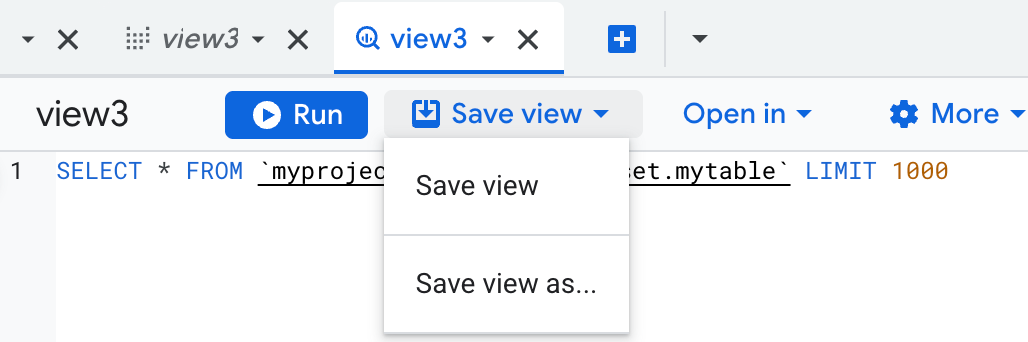
5. Edit the SQL query and then click **Save view \> Save view**:
### bq
Issue the `bq update` command with the `--view` flag. To use GoogleSQL or
to update the query dialect from legacy SQL to GoogleSQL, include the
`--use_legacy_sql` flag and set it to `false`.
If your query references external user-defined function resources
stored in Cloud Storage or in local files, use the
`--view_udf_resource` flag to specify those resources. The
`--view_udf_resource` flag is not demonstrated here. For more information on
using UDFs, see
[GoogleSQL User-Defined Functions](https://docs.cloud.google.com/bigquery/docs/user-defined-functions.md.txt).
If you are updating a view in a project other than your default project, add
the project ID to the dataset name in the following format:
`project_id:dataset`.
```bash
bq update \
--use_legacy_sql=false \
--view_udf_resource=path_to_file \
--view='query' \
project_id:dataset.view
```
Replace the following:
- path_to_file: the URI or local file system path to a code file to be loaded and evaluated immediately as a user-defined function resource used by the view. Repeat the flag to specify multiple files.
- query: a valid GoogleSQL query
- project_id: your project ID
- dataset: the name of the dataset containing the view you're updating
- view: the name of the view you're updating
**Examples**
Enter the following command to update the SQL query for a view named
`myview` in `mydataset`. `mydataset` is in your default project. The example
query used to update the view queries data from the USA Name Data [public dataset](https://docs.cloud.google.com/bigquery/public-data.md.txt).
bq update \
--use_legacy_sql=false \
--view \
'SELECT
name,
number
FROM
`bigquery-public-data.usa_names.usa_1910_current`
WHERE
gender = "M"
ORDER BY
number DESC;' \
mydataset.myview
Enter the following command to update the SQL query for a view named
`myview` in `mydataset`. `mydataset` is in `myotherproject`, not your
default project. The example query used to update the view queries data from
the USA Name Data [public dataset](https://docs.cloud.google.com/bigquery/public-data.md.txt).
bq update \
--use_legacy_sql=false \
--view \
'SELECT
name,
number
FROM
`bigquery-public-data.usa_names.usa_1910_current`
WHERE
gender = "M"
ORDER BY
number DESC;' \
myotherproject:mydataset.myview
### API
You can update a view by calling the [`tables.patch`](https://docs.cloud.google.com/bigquery/docs/reference/rest/v2/tables/patch.md.txt)
method with a [table resource](https://docs.cloud.google.com/bigquery/docs/reference/v2/tables)
that contains an updated `view` property. Because the `tables.update` method
replaces the entire table resource, the `tables.patch` method is preferred.
### Go
Before trying this sample, follow the Go setup instructions in the
[BigQuery quickstart using
client libraries](https://docs.cloud.google.com/bigquery/docs/quickstarts/quickstart-client-libraries).
For more information, see the
[BigQuery Go API
reference documentation](https://godoc.org/cloud.google.com/go/bigquery).
To authenticate to BigQuery, set up Application Default Credentials.
For more information, see
[Set up authentication for client libraries](https://docs.cloud.google.com/bigquery/docs/authentication.md.txt#client-libs).
```go
import (
"context"
"fmt"
"cloud.google.com/go/bigquery"
)
// updateView demonstrates updating the query metadata that defines a logical view.
func updateView(projectID, datasetID, viewID string) error {
// projectID := "my-project-id"
// datasetID := "mydataset"
// viewID := "myview"
ctx := context.Background()
client, err := bigquery.NewClient(ctx, projectID)
if err != nil {
return fmt.Errorf("bigquery.NewClient: %v", err)
}
defer client.Close()
view := client.Dataset(datasetID).Table(viewID)
meta, err := view.Metadata(ctx)
if err != nil {
return err
}
newMeta := bigquery.TableMetadataToUpdate{
// This example updates a view into the shakespeare dataset to exclude works named after kings.
ViewQuery: "SELECT word, word_count, corpus, corpus_date FROM `bigquery-public-data.samples.shakespeare` WHERE corpus NOT LIKE '%king%'",
}
if _, err := view.Update(ctx, newMeta, meta.ETag); err != nil {
return err
}
return nil
}
```
### Java
Before trying this sample, follow the Java setup instructions in the
[BigQuery quickstart using
client libraries](https://docs.cloud.google.com/bigquery/docs/quickstarts/quickstart-client-libraries).
For more information, see the
[BigQuery Java API
reference documentation](https://docs.cloud.google.com/java/docs/reference/google-cloud-bigquery/latest/overview).
To authenticate to BigQuery, set up Application Default Credentials.
For more information, see
[Set up authentication for client libraries](https://docs.cloud.google.com/bigquery/docs/authentication.md.txt#client-libs).
```java
import com.google.cloud.bigquery.BigQuery;
import com.google.cloud.bigquery.BigQueryException;
import com.google.cloud.bigquery.BigQueryOptions;
import com.google.cloud.bigquery.TableId;
import com.google.cloud.bigquery.TableInfo;
import com.google.cloud.bigquery.ViewDefinition;
// Sample to update query on a view
public class UpdateViewQuery {
public static void runUpdateViewQuery() {
// TODO(developer): Replace these variables before running the sample.
String datasetName = "MY_DATASET_NAME";
String tableName = "MY_TABLE_NAME";
String viewName = "MY_VIEW_NAME";
String updateQuery =
String.format("SELECT TimestampField, StringField FROM %s.%s", datasetName, tableName);
updateViewQuery(datasetName, viewName, updateQuery);
}
public static void updateViewQuery(String datasetName, String viewName, String query) {
try {
// Initialize client that will be used to send requests. This client only needs to be created
// once, and can be reused for multiple requests.
BigQuery bigquery = BigQueryOptions.getDefaultInstance().getService();
// Retrieve existing view metadata
TableInfo viewMetadata = bigquery.getTable(TableId.of(datasetName, viewName));
// Update view query
ViewDefinition viewDefinition = viewMetadata.getDefinition();
viewDefinition.toBuilder().setQuery(query).build();
// Set metadata
bigquery.update(viewMetadata.toBuilder().setDefinition(viewDefinition).build());
System.out.println("View query updated successfully");
} catch (BigQueryException e) {
System.out.println("View query was not updated. \n" + e.toString());
}
}
}
```
### Node.js
Before trying this sample, follow the Node.js setup instructions in the
[BigQuery quickstart using
client libraries](https://docs.cloud.google.com/bigquery/docs/quickstarts/quickstart-client-libraries).
For more information, see the
[BigQuery Node.js API
reference documentation](https://googleapis.dev/nodejs/bigquery/latest/index.html).
To authenticate to BigQuery, set up Application Default Credentials.
For more information, see
[Set up authentication for client libraries](https://docs.cloud.google.com/bigquery/docs/authentication.md.txt#client-libs).
```javascript
// Import the Google Cloud client library and create a client
const {BigQuery} = require('@google-cloud/bigquery');
const bigquery = new BigQuery();
async function updateViewQuery() {
// Updates a view named "my_existing_view" in "my_dataset".
/**
* TODO(developer): Uncomment the following lines before running the sample.
*/
// const datasetId = "my_existing_dataset"
// const tableId = "my_existing_table"
const dataset = await bigquery.dataset(datasetId);
// This example updates a view into the USA names dataset to include state.
const newViewQuery = `SELECT name, state
FROM \`bigquery-public-data.usa_names.usa_1910_current\`
LIMIT 10`;
// Retrieve existing view
const [view] = await dataset.table(tableId).get();
// Retrieve existing view metadata
const [metadata] = await view.getMetadata();
// Update view query
metadata.view = newViewQuery;
// Set metadata
await view.setMetadata(metadata);
console.log(`View ${tableId} updated.`);
}
```
### Python
Before trying this sample, follow the Python setup instructions in the
[BigQuery quickstart using
client libraries](https://docs.cloud.google.com/bigquery/docs/quickstarts/quickstart-client-libraries).
For more information, see the
[BigQuery Python API
reference documentation](https://docs.cloud.google.com/python/docs/reference/bigquery/latest).
To authenticate to BigQuery, set up Application Default Credentials.
For more information, see
[Set up authentication for client libraries](https://docs.cloud.google.com/bigquery/docs/authentication.md.txt#client-libs).
```python
from google.cloud import bigquery
client = bigquery.Client()
view_id = "my-project.my_dataset.my_view"
source_id = "my-project.my_dataset.my_table"
view = bigquery.Table(view_id)
# The source table in this example is created from a CSV file in Google
# Cloud Storage located at
# `gs://cloud-samples-data/bigquery/us-states/us-states.csv`. It contains
# 50 US states, while the view returns only those states with names
# starting with the letter 'M'.
view.view_query = f"SELECT name, post_abbr FROM `{source_id}` WHERE name LIKE 'M%'"
# Make an API request to update the query property of the view.
view = client.update_table(view, ["view_query"])
print(f"Updated {view.table_type}: {str(view.reference)}")
```
> [!NOTE]
> **Note:** If you update the datasets referenced by the query of an [authorized
> view](https://docs.cloud.google.com/bigquery/docs/authorized-views), you must [authorize the view](https://docs.cloud.google.com/bigquery/docs/authorized-views.md.txt#manage_users_or_groups_for_authorized_views) access to any new underlying datasets.
### Updating a view's expiration time
You can set a default table expiration time at the dataset level (which affects
both tables and views), or you can set a view's expiration time when the view is
created. If you set the expiration when the view is created, the dataset's
default table expiration is ignored. If you do not set a default table
expiration at the dataset level, and you do not set an expiration when the view
is created, the view never expires and you must delete the
view manually.
At any point after the view is created, you can update the view's expiration
time by:
- Using the Google Cloud console
- Using a Data definition language (DDL) statement written in GoogleSQL syntax
- Using the bq command-line tool's `bq update` command
- Calling the [`tables.patch`](https://docs.cloud.google.com/bigquery/docs/reference/rest/v2/tables/patch.md.txt) API method
- Using the client libraries
> [!NOTE]
> **Note:** If you set an expiration time that has already passed, the view is deleted immediately.
To update a view's expiration time:
### Console
1. In the left pane, click **Explorer**:

2. In the **Explorer** pane, expand your project, click **Datasets**, and
then click a dataset.
3. Click **Overview \> Tables**, and then select the view.
4. In the details pane, click **Edit \> Edit details**.
5. In the **Edit details** pane, in the **Expiration time** menu, select
**Specify date**.
6. In the **Expiration time** field, select a date and time using the date
picker tool.
7. Click **Save** . The updated expiration time appears in the
**View expiration** row of the **View info** section.
### SQL
Use the
[`ALTER VIEW SET OPTIONS` DDL statement](https://docs.cloud.google.com/bigquery/docs/reference/standard-sql/data-definition-language.md.txt#alter_view_set_options_statement):
1. In the Google Cloud console, go to the **BigQuery** page.
[Go to BigQuery](https://console.cloud.google.com/bigquery)
2. In the query editor, enter the following statement:
```googlesql
ALTER VIEW DATASET_ID.MY_VIEW
SET OPTIONS (
expiration_timestamp = TIMESTAMP('NEW_TIMESTAMP'));
```
Replace the following:
- DATASET_ID: the ID of the dataset containing your view
- MY_VIEW: the name of the view to be updated
- NEW_TIMESTAMP: a [TIMESTAMP value](https://docs.cloud.google.com/bigquery/docs/reference/standard-sql/data-types.md.txt#timestamp_type)
3. Click **Run**.
For more information about how to run queries, see [Run an interactive query](https://docs.cloud.google.com/bigquery/docs/running-queries.md.txt#queries).
### bq
Issue the `bq update` command with the `--expiration` flag. If you are
updating a view in a project other than your default project,
add the project ID to the dataset name in the following format:
`project_id:dataset`.
```googlesql
bq update \
--expiration integer \
project_id:dataset.view
```
Replace the following:
- integer: the default lifetime (in seconds) for the table. The minimum value is 3600 seconds (one hour). The expiration time evaluates to the current time plus the integer value.
- project_id: your project ID
- dataset: the name of the dataset containing the view you're updating
- view: the name of the view you're updating
**Examples**
Enter the following command to update the expiration time of `myview` in
`mydataset` to 5 days (432000 seconds). `mydataset` is in your default
project.
bq update \
--expiration 432000 \
mydataset.myview
Enter the following command to update the expiration time of `myview` in
`mydataset` to 5 days (432000 seconds). `mydataset` is in `myotherproject`,
not your default project.
bq update \
--expiration 432000 \
myotherproject:mydataset.myview
### API
Call the [`tables.patch`](https://docs.cloud.google.com/bigquery/docs/reference/rest/v2/tables/patch.md.txt)
method and use the `expirationTime` property in the
[table resource](https://docs.cloud.google.com/bigquery/docs/reference/rest/v2/tables.md.txt). Because the
`tables.update` method replaces the entire table resource, the
`tables.patch` method is preferred. When you use the REST API, the view's
expiration is expressed in milliseconds.
### Go
Before trying this sample, follow the Go setup instructions in the
[BigQuery quickstart using
client libraries](https://docs.cloud.google.com/bigquery/docs/quickstarts/quickstart-client-libraries).
For more information, see the
[BigQuery Go API
reference documentation](https://godoc.org/cloud.google.com/go/bigquery).
To authenticate to BigQuery, set up Application Default Credentials.
For more information, see
[Set up authentication for client libraries](https://docs.cloud.google.com/bigquery/docs/authentication.md.txt#client-libs).
```go
import (
"context"
"fmt"
"time"
"cloud.google.com/go/bigquery"
)
// updateTableExpiration demonstrates setting the table expiration of a table to a specific point in time
// in the future, at which time it will be deleted.
func updateTableExpiration(projectID, datasetID, tableID string) error {
// projectID := "my-project-id"
// datasetID := "mydataset"
// tableID := "mytable"
ctx := context.Background()
client, err := bigquery.NewClient(ctx, projectID)
if err != nil {
return fmt.Errorf("bigquery.NewClient: %v", err)
}
defer client.Close()
tableRef := client.Dataset(datasetID).Table(tableID)
meta, err := tableRef.Metadata(ctx)
if err != nil {
return err
}
update := bigquery.TableMetadataToUpdate{
ExpirationTime: time.Now().Add(time.Duration(5*24) * time.Hour), // table expiration in 5 days.
}
if _, err = tableRef.Update(ctx, update, meta.ETag); err != nil {
return err
}
return nil
}
```
### Java
Before trying this sample, follow the Java setup instructions in the
[BigQuery quickstart using
client libraries](https://docs.cloud.google.com/bigquery/docs/quickstarts/quickstart-client-libraries).
For more information, see the
[BigQuery Java API
reference documentation](https://docs.cloud.google.com/java/docs/reference/google-cloud-bigquery/latest/overview).
To authenticate to BigQuery, set up Application Default Credentials.
For more information, see
[Set up authentication for client libraries](https://docs.cloud.google.com/bigquery/docs/authentication.md.txt#client-libs).
```java
Table beforeTable = bigquery.getTable(datasetName, tableName);
// Set table to expire 5 days from now.
long expirationMillis = DateTime.now().plusDays(5).getMillis();
TableInfo tableInfo = beforeTable.toBuilder()
.setExpirationTime(expirationMillis)
.build();
Table afterTable = bigquery.update(tableInfo);
```
### Node.js
Before trying this sample, follow the Node.js setup instructions in the
[BigQuery quickstart using
client libraries](https://docs.cloud.google.com/bigquery/docs/quickstarts/quickstart-client-libraries).
For more information, see the
[BigQuery Node.js API
reference documentation](https://googleapis.dev/nodejs/bigquery/latest/index.html).
To authenticate to BigQuery, set up Application Default Credentials.
For more information, see
[Set up authentication for client libraries](https://docs.cloud.google.com/bigquery/docs/authentication.md.txt#client-libs).
```javascript
// Import the Google Cloud client library
const {BigQuery} = require('@google-cloud/bigquery');
const bigquery = new BigQuery();
async function updateTableExpiration() {
// Updates a table's expiration.
/**
* TODO(developer): Uncomment the following lines before running the sample.
*/
// const datasetId = 'my_dataset', // Existing dataset
// const tableId = 'my_table', // Existing table
// const expirationTime = Date.now() + 1000 * 60 * 60 * 24 * 5 // 5 days from current time in ms
// Retreive current table metadata
const table = bigquery.dataset(datasetId).table(tableId);
const [metadata] = await table.getMetadata();
// Set new table expiration to 5 days from current time
metadata.expirationTime = expirationTime.toString();
const [apiResponse] = await table.setMetadata(metadata);
const newExpirationTime = apiResponse.expirationTime;
console.log(`${tableId} expiration: ${newExpirationTime}`);
}
```
### Python
Updating a view's expiration is the same process as updating a table's
expiration.
Before trying this sample, follow the Python setup instructions in the
[BigQuery quickstart using
client libraries](https://docs.cloud.google.com/bigquery/docs/quickstarts/quickstart-client-libraries).
For more information, see the
[BigQuery Python API
reference documentation](https://docs.cloud.google.com/python/docs/reference/bigquery/latest).
To authenticate to BigQuery, set up Application Default Credentials.
For more information, see
[Set up authentication for client libraries](https://docs.cloud.google.com/bigquery/docs/authentication.md.txt#client-libs).
```python
from google.cloud import bigquery
client = bigquery.Client()
# TODO(dev): Change table_id to the full name of the table you want to update.
table_id = "your-project.your_dataset.your_table_name"
# TODO(dev): Set table to expire for desired days days from now.
expiration = datetime.datetime.now(datetime.timezone.utc) + datetime.timedelta(
days=5
)
table = client.get_table(table_id) # Make an API request.
table.expires = expiration
table = client.update_table(table, ["expires"]) # API request
print(f"Updated {table_id}, expires {table.expires}.")
```
### Updating a view's description
You can update a view's description by:
- Using the Google Cloud console
- Using a Data definition language (DDL) statement written in GoogleSQL syntax
- Using the bq command-line tool's `bq update` command
- Calling the [`tables.patch`](https://docs.cloud.google.com/bigquery/docs/reference/rest/v2/tables/patch.md.txt) API method
- Using the client libraries
To update a view's description:
### Console
You cannot add a description when you create a view using the Google Cloud console.
After the view is created, you can add a description on the **Details**
page.
1. In the left pane, click **Explorer**:

2. In the **Explorer** pane, expand your project, click **Datasets**, and
then click a dataset.
3. Click **Overview \> Tables**, and then select the view.
4. In the details pane, click **Edit \> Edit details**.
5. In the **Edit details** pane, in the **Description** field, enter a new
description or edit an existing description.
6. To save the new description, click **Save**.
### SQL
Use the
[`ALTER VIEW SET OPTIONS` DDL statement](https://docs.cloud.google.com/bigquery/docs/reference/standard-sql/data-definition-language.md.txt#alter_view_set_options_statement):
1. In the Google Cloud console, go to the **BigQuery** page.
[Go to BigQuery](https://console.cloud.google.com/bigquery)
2. In the query editor, enter the following statement:
```googlesql
ALTER VIEW DATASET_ID.MY_VIEW
SET OPTIONS (
description = 'NEW_DESCRIPTION');
```
Replace the following:
- DATASET_ID: the ID of the dataset containing your view
- MY_VIEW: the name of the view to be updated
- NEW_DESCRIPTION: the new view description
3. Click **Run**.
For more information about how to run queries, see [Run an interactive query](https://docs.cloud.google.com/bigquery/docs/running-queries.md.txt#queries).
### bq
Issue the `bq update` command with the `--description` flag. If you are
updating a view in a project other than your default project, add the
project ID to the dataset name in the following format:
`[PROJECT_ID]:[DATASET]`.
```bash
bq update \
--description "description" \
project_id:dataset.view
```
Replace the following:
- description: the text describing the view in quotes
- project_id: your project ID.
- dataset: the name of the dataset containing the view you're updating
- view: the name of the view you're updating
**Examples**
Enter the following command to change the description of `myview` in
`mydataset` to "Description of myview." `mydataset` is in your default
project.
bq update \
--description "Description of myview" \
mydataset.myview
Enter the following command to change the description of `myview` in
`mydataset` to "Description of myview." `mydataset` is in `myotherproject`,
not your default project.
bq update \
--description "Description of myview" \
myotherproject:mydataset.myview
### API
Call the [`tables.patch`](https://docs.cloud.google.com/bigquery/docs/reference/rest/v2/tables/patch.md.txt)
method and use the `description` property to update the view's description
in the [table resource](https://docs.cloud.google.com/bigquery/docs/reference/rest/v2/tables.md.txt). Because
the `tables.update` method replaces the entire table resource, the
`tables.patch` method is preferred.
### Go
Before trying this sample, follow the Go setup instructions in the
[BigQuery quickstart using
client libraries](https://docs.cloud.google.com/bigquery/docs/quickstarts/quickstart-client-libraries).
For more information, see the
[BigQuery Go API
reference documentation](https://godoc.org/cloud.google.com/go/bigquery).
To authenticate to BigQuery, set up Application Default Credentials.
For more information, see
[Set up authentication for client libraries](https://docs.cloud.google.com/bigquery/docs/authentication.md.txt#client-libs).
```go
import (
"context"
"fmt"
"cloud.google.com/go/bigquery"
)
// updateTableDescription demonstrates how to fetch a table's metadata and updates the Description metadata.
func updateTableDescription(projectID, datasetID, tableID string) error {
// projectID := "my-project-id"
// datasetID := "mydataset"
// tableID := "mytable"
ctx := context.Background()
client, err := bigquery.NewClient(ctx, projectID)
if err != nil {
return fmt.Errorf("bigquery.NewClient: %v", err)
}
defer client.Close()
tableRef := client.Dataset(datasetID).Table(tableID)
meta, err := tableRef.Metadata(ctx)
if err != nil {
return err
}
update := bigquery.TableMetadataToUpdate{
Description: "Updated description.",
}
if _, err = tableRef.Update(ctx, update, meta.ETag); err != nil {
return err
}
return nil
}
```
### Java
Updating a view's description is the same process as updating a table's
description.
Before trying this sample, follow the Java setup instructions in the
[BigQuery quickstart using
client libraries](https://docs.cloud.google.com/bigquery/docs/quickstarts/quickstart-client-libraries).
For more information, see the
[BigQuery Java API
reference documentation](https://docs.cloud.google.com/java/docs/reference/google-cloud-bigquery/latest/overview).
To authenticate to BigQuery, set up Application Default Credentials.
For more information, see
[Set up authentication for client libraries](https://docs.cloud.google.com/bigquery/docs/authentication.md.txt#client-libs).
```java
// String datasetName = "my_dataset_name";
// String tableName = "my_table_name";
// String newDescription = "new_description";
Table beforeTable = bigquery.getTable(datasetName, tableName);
TableInfo tableInfo = beforeTable.toBuilder()
.setDescription(newDescription)
.build();
Table afterTable = bigquery.update(tableInfo);
```
### Node.js
Before trying this sample, follow the Node.js setup instructions in the
[BigQuery quickstart using
client libraries](https://docs.cloud.google.com/bigquery/docs/quickstarts/quickstart-client-libraries).
For more information, see the
[BigQuery Node.js API
reference documentation](https://googleapis.dev/nodejs/bigquery/latest/index.html).
To authenticate to BigQuery, set up Application Default Credentials.
For more information, see
[Set up authentication for client libraries](https://docs.cloud.google.com/bigquery/docs/authentication.md.txt#client-libs).
```javascript
// Import the Google Cloud client library
const {BigQuery} = require('@google-cloud/bigquery');
const bigquery = new BigQuery();
async function updateTableDescription() {
// Updates a table's description.
// Retreive current table metadata
const table = bigquery.dataset(datasetId).table(tableId);
const [metadata] = await table.getMetadata();
// Set new table description
const description = 'New table description.';
metadata.description = description;
const [apiResponse] = await table.setMetadata(metadata);
const newDescription = apiResponse.description;
console.log(`${tableId} description: ${newDescription}`);
}
```
### Python
Updating a view's description is the same process as updating a table's
description.
Before trying this sample, follow the Python setup instructions in the
[BigQuery quickstart using
client libraries](https://docs.cloud.google.com/bigquery/docs/quickstarts/quickstart-client-libraries).
For more information, see the
[BigQuery Python API
reference documentation](https://docs.cloud.google.com/python/docs/reference/bigquery/latest).
To authenticate to BigQuery, set up Application Default Credentials.
For more information, see
[Set up authentication for client libraries](https://docs.cloud.google.com/bigquery/docs/authentication.md.txt#client-libs).
```python
# from google.cloud import bigquery
# client = bigquery.Client()
# project = client.project
# dataset_ref = bigquery.DatasetReference(project, dataset_id)
# table_ref = dataset_ref.table('my_table')
# table = client.get_table(table_ref) # API request
assert table.description == "Original description."
table.description = "Updated description."
table = client.update_table(table, ["description"]) # API request
assert table.description == "Updated description."
```
## Copy views
You can copy a view using the Google Cloud console.
You cannot copy a view by using the bq command-line tool, the REST API, or the client
libraries, but you can [copy a view in the target dataset](https://docs.cloud.google.com/bigquery/docs/views.md.txt).
### Required permissions
To copy a view in the Google Cloud console, you need IAM permissions on the
source and destination datasets.
- On the source dataset, you need the following:
- `bigquery.tables.get`
- `bigquery.tables.getData` (required to access the tables referenced by the view's SQL query)
- On the destination dataset, you need the following:
- `bigquery.tables.create` (lets you create a copy of the view in the destination dataset)
Each of the following predefined IAM roles includes the
permissions that you need in order to copy a view:
- `roles/bigquery.dataEditor`
- `roles/bigquery.dataOwner`
- `roles/bigquery.admin`
Additionally, if you have the `bigquery.datasets.create` permission, you can copy views in the datasets that you create. You also need access to the destination dataset unless you created it.
> [!NOTE]
> **Note:** `bigquery.jobs.create` permissions are not required to copy a view. The Google Cloud console does not generate a copy job when you copy a view.
For more information on IAM roles and permissions in
BigQuery, see [Predefined roles and permissions](https://docs.cloud.google.com/bigquery/docs/access-control.md.txt).
### Copy a view
To copy a view, follow these steps:
1. In the left pane, click **Explorer**:

2. In the **Explorer** pane, expand your project, click **Datasets**, and
then click a dataset.
3. Click **Overview \> Tables**, and then select the view.
4. In the details pane, click **More \> Make a copy of view**.
5. In the **Copy view** dialog, do the following:
1. In the **Source** section, verify that your project name, dataset name, and table name are correct.
2. In the **Destination** section, do the following:
- For **Project**, choose the project to which you are copying the view.
- For **Dataset**, choose the dataset that will contain the copied view.
- For **Table** , enter the name of the view. You can rename the view by entering a new view name in the box. If you enter a new name, it must follow the [view naming](https://docs.cloud.google.com/bigquery/docs/views.md.txt#view_naming) rules.
3. Click **Copy**:

Limits for copy jobs apply. For more information, see
[Quotas and limits](https://docs.cloud.google.com/bigquery/quotas.md.txt#copy_jobs).
## Rename a view
You can rename a view only when you use the Google Cloud console to
copy the view. For instructions on renaming a view when you copy it, see
[Copying a view](https://docs.cloud.google.com/bigquery/docs/managing-views.md.txt#copy).
You cannot change the name of an existing view by using the bq command-line tool, the API,
or the client libraries. Instead, you must
[recreate the view](https://docs.cloud.google.com/bigquery/docs/views.md.txt) with the new name.
## Delete views
You can delete a view by:
- Using the Google Cloud console
- Using the bq command-line tool's `bq rm` command
- Calling the [`tables.delete`](https://docs.cloud.google.com/bigquery/docs/reference/v2/tables/delete) API method
Using any available method, you can only delete one view at a time.
To automatically delete views after a specified period of time, set the default
[expiration time](https://docs.cloud.google.com/bigquery/docs/updating-datasets.md.txt#table-expiration)
at the dataset level or set the expiration time when you [create the view](https://docs.cloud.google.com/bigquery/docs/views.md.txt).
When you delete an [authorized view](https://docs.cloud.google.com/bigquery/docs/authorized-views.md.txt), it
might take up to 24 hours to remove the deleted view from the *authorized views*
list of the source dataset.
> [!CAUTION]
> **Caution:** Deleting a view cannot be undone. If you recreate an authorized view with the same name as the deleted view, you must add the new view to the *authorized views* list of the source dataset.
Deleting a view also deletes any permissions associated with this view. When
you recreate a deleted view, you must also manually [reconfigure any access permissions](https://docs.cloud.google.com/bigquery/docs/control-access-to-resources-iam.md.txt)
previously associated with it.
> [!NOTE]
> **Note:** You cannot recover views directly, but you can recover the view creation statement by searching for the corresponding [audit log activity](https://docs.cloud.google.com/bigquery/docs/introduction-audit-workloads.md.txt).
>
> - For information about using the log explorer to query the activity log by audit log name, see the [audit logs overview](https://docs.cloud.google.com/logging/docs/audit.md.txt).
> - For information about using `projects/PROJECT_ID/logs/cloudaudit.googleapis.com%2Factivity`, see [BigQuery Data Policy audit logging](https://docs.cloud.google.com/bigquery/docs/column-data-masking-audit-logging.md.txt).
### Required permissions
To delete a view, you need the following IAM permissions:
- `bigquery.tables.delete`
Each of the following predefined IAM roles includes the permissions that you need in order to delete a view:
- `roles/bigquery.dataOwner`
- `roles/bigquery.dataEditor`
- `roles/bigquery.admin`
Additionally, if you have the `bigquery.datasets.create` permission, you can delete views in the datasets that you create.
For more information on IAM roles and permissions in
BigQuery, see [Predefined roles and permissions](https://docs.cloud.google.com/bigquery/docs/access-control.md.txt).
### Delete a view
To delete a view:
### Console
1. In the Google Cloud console, go to the BigQuery page.
[Go to BigQuery](https://console.cloud.google.com/bigquery)
2. In the left pane, click **Explorer**:

3. In the **Explorer** pane, expand your project, click **Datasets**, and
then click a dataset.
4. Click **Overview \> Tables**, and then click the view.
5. In the details pane, click **More \> Delete**.
6. Type `"delete"` in the dialog, and click **Delete** to confirm.
### SQL
Use the
[`DROP VIEW` DDL statement](https://docs.cloud.google.com/bigquery/docs/reference/standard-sql/data-definition-language.md.txt#drop_view_statement):
1. In the Google Cloud console, go to the **BigQuery** page.
[Go to BigQuery](https://console.cloud.google.com/bigquery)
2. In the query editor, enter the following statement:
```googlesql
DROP VIEW mydataset.myview;
```
Replace the following:
- DATASET_ID: the ID of the dataset containing your view
- MY_VIEW: the name of the view to be updated
- NEW_DESCRIPTION: the new view description
3. Click **Run**.
For more information about how to run queries, see [Run an interactive query](https://docs.cloud.google.com/bigquery/docs/running-queries.md.txt#queries).
### bq
Use the `bq rm` command with the `--table` flag (or `-t` shortcut) to delete
a view. When you use the bq command-line tool to remove a view, you must confirm the action.
You can use the `--force` flag (or `-f` shortcut) to skip confirmation.
If the view is in a dataset in a project other than your default
project, add the project ID to the dataset name in the following format:
`project_id:dataset`.
```bash
bq rm \
-f \
-t \
project_id:dataset.view
```
Where:
- project_id is your project ID.
- dataset is the name of the dataset that contains the table.
- view is the name of the view you're deleting.
Examples:
You can use the bq command-line tool to run `bq` commands.
In the Google Cloud console, activate **Cloud Shell**.
[Activate Cloud Shell](https://console.cloud.google.com/bigquery?cloudshell=true)
Enter the following command to delete `myview` from `mydataset`. `mydataset`
is in your default project.
bq rm -t mydataset.myview
Enter the following command to delete `myview` from `mydataset`. `mydataset`
is in `myotherproject`, not your default project.
bq rm -t myotherproject:mydataset.myview
Enter the following command to delete `myview` from `mydataset`. `mydataset`
is in your default project. The command uses the `-f` shortcut to bypass
confirmation.
bq rm -f -t mydataset.myview
> [!NOTE]
> **Note:** You can enter the [`bq ls dataset`](https://docs.cloud.google.com/bigquery/docs/reference/bq-cli-reference.md.txt#bq_ls) command to confirm that a view was removed from a dataset.
### API
Call the [`tables.delete`](https://docs.cloud.google.com/bigquery/docs/reference/v2/tables/delete)
API method and specify the view to delete using the `tableId` parameter.
### C#
Before trying this sample, follow the C# setup instructions in the
[BigQuery quickstart using
client libraries](https://docs.cloud.google.com/bigquery/docs/quickstarts/quickstart-client-libraries).
For more information, see the
[BigQuery C# API
reference documentation](https://docs.cloud.google.com/dotnet/docs/reference/Google.Cloud.BigQuery.V2/latest).
To authenticate to BigQuery, set up Application Default Credentials.
For more information, see
[Set up authentication for client libraries](https://docs.cloud.google.com/bigquery/docs/authentication.md.txt#client-libs).
```c#
using Google.Cloud.BigQuery.V2;
using System;
public class BigQueryDeleteTable
{
public void DeleteTable(
string projectId = "your-project-id",
string datasetId = "your_dataset_id",
string tableId = "your_table_id"
)
{
BigQueryClient client = BigQueryClient.Create(projectId);
client.DeleteTable(datasetId, tableId);
Console.WriteLine($"Table {tableId} deleted.");
}
}
```
### Go
Before trying this sample, follow the Go setup instructions in the
[BigQuery quickstart using
client libraries](https://docs.cloud.google.com/bigquery/docs/quickstarts/quickstart-client-libraries).
For more information, see the
[BigQuery Go API
reference documentation](https://godoc.org/cloud.google.com/go/bigquery).
To authenticate to BigQuery, set up Application Default Credentials.
For more information, see
[Set up authentication for client libraries](https://docs.cloud.google.com/bigquery/docs/authentication.md.txt#client-libs).
```go
import (
"context"
"fmt"
"cloud.google.com/go/bigquery"
)
// deleteTable demonstrates deletion of a BigQuery table.
func deleteTable(projectID, datasetID, tableID string) error {
// projectID := "my-project-id"
// datasetID := "mydataset"
// tableID := "mytable"
ctx := context.Background()
client, err := bigquery.NewClient(ctx, projectID)
if err != nil {
return fmt.Errorf("bigquery.NewClient: %v", err)
}
defer client.Close()
table := client.Dataset(datasetID).Table(tableID)
if err := table.Delete(ctx); err != nil {
return err
}
return nil
}
```
### Java
Before trying this sample, follow the Java setup instructions in the
[BigQuery quickstart using
client libraries](https://docs.cloud.google.com/bigquery/docs/quickstarts/quickstart-client-libraries).
For more information, see the
[BigQuery Java API
reference documentation](https://docs.cloud.google.com/java/docs/reference/google-cloud-bigquery/latest/overview).
To authenticate to BigQuery, set up Application Default Credentials.
For more information, see
[Set up authentication for client libraries](https://docs.cloud.google.com/bigquery/docs/authentication.md.txt#client-libs).
```java
TableId tableId = TableId.of(projectId, datasetName, tableName);
boolean deleted = bigquery.delete(tableId);
if (deleted) {
// the table was deleted
} else {
// the table was not found
}
```
### Node.js
Before trying this sample, follow the Node.js setup instructions in the
[BigQuery quickstart using
client libraries](https://docs.cloud.google.com/bigquery/docs/quickstarts/quickstart-client-libraries).
For more information, see the
[BigQuery Node.js API
reference documentation](https://googleapis.dev/nodejs/bigquery/latest/index.html).
To authenticate to BigQuery, set up Application Default Credentials.
For more information, see
[Set up authentication for client libraries](https://docs.cloud.google.com/bigquery/docs/authentication.md.txt#client-libs).
```javascript
// Import the Google Cloud client library
const {BigQuery} = require('@google-cloud/bigquery');
const bigquery = new BigQuery();
async function deleteTable() {
// Deletes "my_table" from "my_dataset".
/**
* TODO(developer): Uncomment the following lines before running the sample.
*/
// const datasetId = "my_dataset";
// const tableId = "my_table";
// Delete the table
await bigquery
.dataset(datasetId)
.table(tableId)
.delete();
console.log(`Table ${tableId} deleted.`);
}
```
### PHP
Before trying this sample, follow the PHP setup instructions in the
[BigQuery quickstart using
client libraries](https://docs.cloud.google.com/bigquery/docs/quickstarts/quickstart-client-libraries).
For more information, see the
[BigQuery PHP API
reference documentation](https://docs.cloud.google.com/php/docs/reference/cloud-bigquery/latest/BigQueryClient).
To authenticate to BigQuery, set up Application Default Credentials.
For more information, see
[Set up authentication for client libraries](https://docs.cloud.google.com/bigquery/docs/authentication.md.txt#client-libs).
```php
use Google\Cloud\BigQuery\BigQueryClient;
/** Uncomment and populate these variables in your code */
// $projectId = 'The Google project ID';
// $datasetId = 'The BigQuery dataset ID';
// $tableId = 'The BigQuery table ID';
$bigQuery = new BigQueryClient([
'projectId' => $projectId,
]);
$dataset = $bigQuery->dataset($datasetId);
$table = $dataset->table($tableId);
$table->delete();
printf('Deleted table %s.%s' . PHP_EOL, $datasetId, $tableId);
```
### Python
Before trying this sample, follow the Python setup instructions in the
[BigQuery quickstart using
client libraries](https://docs.cloud.google.com/bigquery/docs/quickstarts/quickstart-client-libraries).
For more information, see the
[BigQuery Python API
reference documentation](https://docs.cloud.google.com/python/docs/reference/bigquery/latest).
To authenticate to BigQuery, set up Application Default Credentials.
For more information, see
[Set up authentication for client libraries](https://docs.cloud.google.com/bigquery/docs/authentication.md.txt#client-libs).
```python
from google.cloud import bigquery
# Construct a BigQuery client object.
client = bigquery.Client()
# TODO(developer): Set table_id to the ID of the table to fetch.
# table_id = 'your-project.your_dataset.your_table'
# If the table does not exist, delete_table raises
# google.api_core.exceptions.NotFound unless not_found_ok is True.
client.delete_table(table_id, not_found_ok=True) # Make an API request.
print("Deleted table '{}'.".format(table_id))
```
### Ruby
Before trying this sample, follow the Ruby setup instructions in the
[BigQuery quickstart using
client libraries](https://docs.cloud.google.com/bigquery/docs/quickstarts/quickstart-client-libraries).
For more information, see the
[BigQuery Ruby API
reference documentation](https://googleapis.dev/ruby/google-cloud-bigquery/latest/Google/Cloud/Bigquery.html).
To authenticate to BigQuery, set up Application Default Credentials.
For more information, see
[Set up authentication for client libraries](https://docs.cloud.google.com/bigquery/docs/authentication.md.txt#client-libs).
```ruby
require "google/cloud/bigquery"
def delete_table dataset_id = "my_dataset_id", table_id = "my_table_id"
bigquery = Google::Cloud::Bigquery.new
dataset = bigquery.dataset dataset_id
table = dataset.table table_id
table.delete
puts "Table #{table_id} deleted."
end
```
## Restore a view
You can't restore a deleted view directly, but there are workarounds for certain
scenarios:
- If a view is deleted because the parent dataset was deleted, then you can [undelete the dataset](https://docs.cloud.google.com/bigquery/docs/restore-deleted-datasets.md.txt) to retrieve the view.
- If a view is deleted explicitly, then you can [recreate the view](https://docs.cloud.google.com/bigquery/docs/views.md.txt) by using the last query that was used to create or update the view. You can find the query definition of the view creation or update operation in [logs](https://docs.cloud.google.com/bigquery/docs/reference/auditlogs/rest/Shared.Types/BigQueryAuditMetadata.md.txt#BigQueryAuditMetadata.TableViewDefinition).
## View security
To control access to views in BigQuery, see
[Authorized views](https://docs.cloud.google.com/bigquery/docs/authorized-views.md.txt).
## What's next
- For information on creating views, see [Create views](https://docs.cloud.google.com/bigquery/docs/views.md.txt).
- For information on creating an authorized view, see [Creating authorized views](https://docs.cloud.google.com/bigquery/docs/authorized-views.md.txt).
- For information on getting view metadata, see [Get information about views](https://docs.cloud.google.com/bigquery/docs/view-metadata.md.txt).