# Authorized views
In BigQuery, authorized views and authorized materialized views let you
share a subset of data from a dataset with specific users and groups
(principals). Principals can view the shared data and run queries on it, but
they can't access the source dataset directly.
## View types
A logical view is the default view type for BigQuery, and
a materialized view is a precomputed view that periodically caches the results
of a query for increased performance and efficiency.
An authorized view for a logical view is called an authorized view, but an
authorized view for a materialized view is called an
*authorized materialized view*.
If a logical view relies on [a large or computationally expensive query](https://docs.cloud.google.com/bigquery/docs/materialized-views-intro#use_cases), then you can create a materialized view
instead. To understand the use cases of a logical and materialized view, see
[Overview of logical and materialized views](https://docs.cloud.google.com/bigquery/docs/logical-materialized-view-overview).
## High-level steps for creating authorized views
To create and share a view, review these high-level steps, which are the same
for authorized logical views and authorized materialized views.
> [!NOTE]
> **Note:** You can also [share all views in a dataset](https://docs.cloud.google.com/bigquery/docs/authorized-views#share-all-views).
- Create a dataset to contain your source data.
- Run a query to load data into a destination table in the source dataset.
- Create a dataset to contain your authorized view.
- Create an authorized view from a SQL query that restricts the columns that your data analysts can see in the query results.
- Grant your data analysts permission to run query jobs.
- Grant your data analysts access to the dataset that contains the authorized view.
- Grant the authorized view access to the source dataset.
## Alternatives
Although authorized views are flexible and scalable, one of the following
methods might better apply to your use case:
- Set row-level policies on a table.
- Set column-level policies on a table.
- Store data in a separate table.
- Share all views in a dataset (authorized datasets).
### Use row-level or column-level security, or separate tables
By setting row-level access policies on a table, or by creating a separate table
to hold sensitive data, a data administrator can restrict a user's ability
to view that data. Storing data in a separate table isolates the data and
removes the ability to see how many rows exist in the table.
In addition, by creating and applying policy tags, a data administrator can
restrict the user's ability to view columns in a table.
Storing data in a separate table is the most secure but least flexible method.
Setting row-level policies is flexible and secure, while sharing authorized
views is flexible and provides the best performance.
To compare these methods in detail, see the following resources:
- [Comparison of authorized views, row-level security, and separate tables](https://docs.cloud.google.com/bigquery/docs/row-level-security-intro#comparison_of_authorized_views_row-level_security_and_separate_tables)
- [Introduction to row-level security](https://docs.cloud.google.com/bigquery/docs/row-level-security-intro)
- [Example use cases for row-level security](https://docs.cloud.google.com/bigquery/docs/row-level-security-intro#example_use_cases)
- [Introduction to column-level access control](https://docs.cloud.google.com/bigquery/docs/column-level-security-intro)
### Share all views in a dataset
If you want to give a collection of views access to a dataset without having to
authorize each individual view, you can group the views together into a dataset,
and then give the dataset that contains the views access to the dataset that
contains the data.
You can then give principals access to the dataset
that contains the group of views, or to individual views in the dataset, as
needed. A dataset that has access to another dataset is called an
*authorized dataset* . The dataset that authorizes another dataset to access its
data is called the *shared dataset*.
A dataset's access control list can have up to 2,500 total authorized
resources, including
[authorized views](https://docs.cloud.google.com/bigquery/docs/authorized-views),
[authorized datasets](https://docs.cloud.google.com/bigquery/docs/authorized-datasets),
and
[authorized functions](https://docs.cloud.google.com/bigquery/docs/authorized-functions).
If you exceed this limit due to a large number of authorized views, consider grouping the
views into authorized datasets.
As a best practice, group related views into authorized datasets when you design new
BigQuery architectures, especially multi-tenant architectures.
For more information, see [Authorized datasets](https://docs.cloud.google.com/bigquery/docs/authorized-datasets)
and [Authorize a dataset](https://docs.cloud.google.com/bigquery/docs/authorized-datasets#authorize_a_dataset).
## Limitations
- When you make an authorized view or authorized materialized view in another dataset, the source data dataset and authorized view dataset must be in the same regional [location](https://docs.cloud.google.com/bigquery/docs/locations).
- When you delete an authorized view, it can take up to 24 hours to remove the authorized view from the list of views. During this time, you cannot access the authorized view, but the deleted authorized view can appear in the list of views, and counts against the [authorized view
limit](https://docs.cloud.google.com/bigquery/quotas#dataset_limits). This limit can prevent the creation of additional authorized views if the new authorized view would exceed that limit.
- You can't create an authorized view in a secondary replica. For more information, see [Resource behavior in dataset
replication](https://docs.cloud.google.com/bigquery/docs/data-replication#resource-behavior).
## Before you begin
[Grant Identity and Access Management (IAM) roles](https://docs.cloud.google.com/bigquery/docs/authorized-views#required_permissions)
that give users the necessary permissions
to query the authorized views or authorized materialized views that you share.
### Authorized views and VPC Service Controls
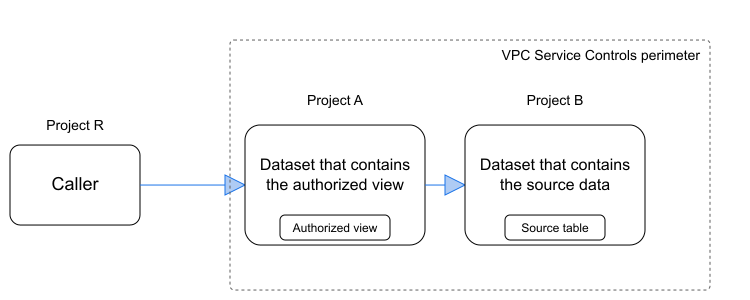
When using authorized views in a VPC Service Controls perimeter, ingress and
egress rules must allow principals access to the project that contains
the view and any other projects that contain the source data the view
is accessing data from.
For example, in the following diagram, the caller in Project R accesses the
authorized view in Project A whose source table exists in Project B.
In this case, the VPC Service Controls ingress and egress rules must allow
the caller in project R to access both Project A and Project B using the
BigQuery service.
#### Required permissions for VPC Service Controls access
The principal doesn't need Identity and Access Management permissions on the source data project,
but the ingress rule must permit access to the BigQuery service
in the source project that contains the source table, in addition to permitting
access to the project that contains the view.
For information about required roles and permissions, see
[User permissions on the project and dataset](https://docs.cloud.google.com/bigquery/docs/authorized-views#user_permissions_on_the_project_and_dataset_for_the_view).
#### Ingress and egress rules
The following examples of VPC Service Controls ingress and egress rules
enable the BigQuery API to access both the source and view projects.
- For details on configuring ingress and egress rules, see [Configuring ingress and egress policies](https://docs.cloud.google.com/vpc-service-controls/docs/configuring-ingress-egress-policies).
- For limitations on how to configure ingress and egress rules for BigQuery, see [VPC Service Controls supported products: BigQuery](https://docs.cloud.google.com/vpc-service-controls/docs/supported-products#table_bigquery).
For example, if you create a view in `PROJECT_A` (view) that accesses data in
`PROJECT_B` (source), you would need the following set of ingress rules for
`PROJECT_B` and another set of ingress rules for `PROJECT_A`:
- ingressFrom:
identityType: caller_r
sources:
- resource:
- projects/project_r
ingressTo:
operations:
- serviceName: bigquery.googleapis.com
methodSelectors:
- method: *
resources:
- projects/project_b
title: Ingress rules for the source project
The following YAML file shows the set of egress rules for
`PROJECT_B` (source). You would also need a set of egress rules for
`PROJECT_A` (view):
- egressTo:
operations:
- serviceName: bigquery.googleapis.com
methodSelectors:
- method: *
resources:
- projects/project_b
egressFrom:
identityType: caller_r
sources:
- resource:
- projects/project_r
title: Egress rules for the source project
### Required roles
To create or update an authorized view, you need permissions to the dataset that
contains the view and to the dataset that provides access to the view.
You also need to grant users or groups access to the project and dataset that
contain the view.
> [!NOTE]
> **Note:** You can't change the SQL query of an authorized view unless you're a data owner.
#### Permissions on the dataset that contains the view
Views are treated as table resources in BigQuery, so creating a
view requires the same permissions as creating a table. You must also have
permissions to query any tables that are referenced by the view's SQL query.
- To create a dataset, you need `bigquery.datasets.create` IAM permission on the project.
- To create a view, you need the `bigquery.tables.create` IAM permission on the dataset. The `roles/bigquery.dataEditor` predefined IAM role includes the permissions that you need to create a view.
- To create a view that queries a table you don't have access to, you must be granted the `bigquery.tables.getData` permission on the table queried by the view.
For more information on IAM roles and permissions in
BigQuery, see [Predefined roles and
permissions](https://docs.cloud.google.com/bigquery/docs/access-control).
#### Permissions on the dataset that contains the source data
To authorize a view, the view is granted read permissions to the dataset
the source data.
To perform this authorization, you need the following
permissions on the dataset that contains the source data:
> [!NOTE]
> **Note:** To create or update an authorized view in an authorized dataset, you don't need the `bigquery.datasets.update` permission.
- `bigquery.datasets.update`
- `datasets.getIamPolicy`
- `datasets.setIamPolicy`
For additional permissions needed to update datasets, see the
[required permissions](https://docs.cloud.google.com/bigquery/docs/updating-datasets#required_permissions).
#### User permissions on the project and dataset for the view
To share an authorized view with users or groups, you must grant the users or
groups the following IAM permissions:
- The `roles/bigquery.jobUser` (or `roles/bigquery.user`)
IAM role to the project where the query job runs (the
billing or execution project). This role grants the `bigquery.jobs.create`
permission which is required to run query jobs against the view.
The `roles/bigquery.jobUser` IAM role is needed only for the
project where you want to run the job, regardless of where the view is hosted.
- The `roles/bigquery.dataViewer` IAM role to the
dataset that contains the authorized view. This role grants the
`bigquery.tables.getData` permission, which is required to query the view.
If a user queries the authorized view from a separate project, they don't
need the `roles/bigquery.jobUser` role on the project that hosts the view.
They need the `roles/bigquery.dataViewer` role on the dataset that
contains the view, and they need the `roles/bigquery.jobUser` role on the
project where the query runs.
## Work with authorized views
The following sections describe how to work with authorized views and authorized
materialized views.
### Create an authorized view
To create an authorized view, choose one of the following options. For complete
steps to authorize, share, and delete an authorized view, see the
tutorial [Create an authorized view](https://docs.cloud.google.com/bigquery/docs/create-authorized-views).
### Console
1. Go to the **BigQuery** page.
[Go to BigQuery](https://console.cloud.google.com/bigquery)
2. In the query editor, type the query that you want to base the
authorized view on.
3. Click **File** \> **Save** \> **Save view**.
4. In the **Save view** dialog, do the following:
1. For **Project**, type the project in which to save the view.
2. For **Dataset**, type the dataset in which to save the view. This
must be a different dataset than the dataset used in the source
query.
3. For **Table**, type the name of the view.
4. Click **Save**.
5. Grant
[necessary permissions](https://docs.cloud.google.com/bigquery/docs/authorized-views#user_permissions_on_the_project_and_dataset_for_the_view)
to users who can use the authorized view.
6. In the **Explorer** pane, select the dataset used in the source query.
7. In the **Details** pane, click **Sharing** \>
**Authorize views**.
8. In the **Authorized views** pane, for **Authorized view** , type
the fully qualified name of the view, in the format
PROJECT_ID.DATASET_ID.VIEW_NAME.
9. Click **Add authorization**.
### Terraform
To authenticate to BigQuery, set up Application Default
Credentials. For more information, see
[Set up authentication for client libraries](https://docs.cloud.google.com/bigquery/docs/authentication#client-libs).
> [!NOTE]
> **Note:** To create BigQuery objects using Terraform, you must enable the [Cloud Resource Manager API](https://docs.cloud.google.com/resource-manager/reference/rest).
# Creates an authorized view.
# Create a dataset to contain the view.
resource "google_bigquery_dataset" "view_dataset" {
dataset_id = "view_dataset"
description = "Dataset that contains the view"
location = "us-west1"
}
# Create the view to authorize.
resource "google_bigquery_table" "movie_view" {
project = google_bigquery_dataset.view_dataset.project
dataset_id = google_bigquery_dataset.view_dataset.dataset_id
table_id = "movie_view"
description = "View to authorize"
view {
query = "SELECT item_id, avg(rating) FROM `movie_project.movie_dataset.movie_ratings` GROUP BY item_id ORDER BY item_id;"
use_legacy_sql = false
}
}
# Authorize the view to access the dataset
# that the query data originates from.
resource "google_bigquery_dataset_access" "view_authorization" {
project = "movie_project"
dataset_id = "movie_dataset"
view {
project_id = google_bigquery_table.movie_view.project
dataset_id = google_bigquery_table.movie_view.dataset_id
table_id = google_bigquery_table.movie_view.table_id
}
}
# Specify the IAM policy for principals that can access
# the authorized view. These users should already
# have the roles/bigqueryUser role at the project level.
data "google_iam_policy" "principals_policy" {
binding {
role = "roles/bigquery.dataViewer"
members = [
"group:example-group@example.com",
]
}
}
# Set the IAM policy on the authorized view.
resource "google_bigquery_table_iam_policy" "authorized_view_policy" {
project = google_bigquery_table.movie_view.project
dataset_id = google_bigquery_table.movie_view.dataset_id
table_id = google_bigquery_table.movie_view.table_id
policy_data = data.google_iam_policy.principals_policy.policy_data
}
To apply your Terraform configuration in a Google Cloud project, complete the steps in the
following sections.
## Prepare Cloud Shell
1. Launch [Cloud Shell](https://shell.cloud.google.com/).
2. Set the default Google Cloud project
where you want to apply your Terraform configurations.
You only need to run this command once per project, and you can run it in any directory.
```
export GOOGLE_CLOUD_PROJECT=PROJECT_ID
```
Environment variables are overridden if you set explicit values in the Terraform
configuration file.
## Prepare the directory
Each Terraform configuration file must have its own directory (also
called a *root module*).
1. In [Cloud Shell](https://shell.cloud.google.com/), create a directory and a new file within that directory. The filename must have the `.tf` extension---for example `main.tf`. In this tutorial, the file is referred to as `main.tf`.
```
mkdir DIRECTORY && cd DIRECTORY && touch main.tf
```
2. If you are following a tutorial, you can copy the sample code in each section or step.
Copy the sample code into the newly created `main.tf`.
Optionally, copy the code from GitHub. This is recommended
when the Terraform snippet is part of an end-to-end solution.
3. Review and modify the sample parameters to apply to your environment.
4. Save your changes.
5. Initialize Terraform. You only need to do this once per directory.
```
terraform init
```
Optionally, to use the latest Google provider version, include the `-upgrade`
option:
```
terraform init -upgrade
```
## Apply the changes
1. Review the configuration and verify that the resources that Terraform is going to create or update match your expectations:
```
terraform plan
```
Make corrections to the configuration as necessary.
2. Apply the Terraform configuration by running the following command and entering `yes` at the prompt:
```
terraform apply
```
Wait until Terraform displays the "Apply complete!" message.
3. [Open your Google Cloud project](https://console.cloud.google.com/) to view the results. In the Google Cloud console, navigate to your resources in the UI to make sure that Terraform has created or updated them.
> [!NOTE]
> **Note:** Terraform samples typically assume that the required APIs are enabled in your Google Cloud project.
### Manage users or groups for authorized views
After authorizing a view, you can maintain access to it by completing the
following tasks for a dataset, table, or view:
- View the access policy.
- Grant access.
- Revoke access.
- Deny access.
For more information, see
[Control access to resources using IAM](https://docs.cloud.google.com/bigquery/docs/control-access-to-resources-iam).
### Remove authorization to a view
> [!NOTE]
> **Note:** If you remove authorization for a view across a VPC Service Controls perimeter, queries might start failing with VPC Service Controls errors. For more information, see [Revoked authorization and VPC Service Controls](https://docs.cloud.google.com/bigquery/docs/authorized-views#revoked-authorization-vpcsc). If you remove a view, wait 24 hours before reusing the view name, or use a unique name. For more information about removing views, see [Quotas and limits](https://docs.cloud.google.com/bigquery/docs/authorized-views#quotas_and_limits).
To remove authorization to a view, select one of the following options:
### Console
1. Go to the BigQuery page in the Google Cloud console.
[Go to BigQuery](https://console.cloud.google.com/bigquery)
2. In the left pane, click **Explorer**:

If you don't see the left pane, click **Expand left pane** to open the pane.
3. In the **Explorer** pane, expand your project, click **Datasets**, and
then select a dataset.
4. Click **Overview \> Tables**, and then select a table.
5. Click
**Sharing** \> **Authorize views**.
6. Click
to **Remove authorization**.
7. Click **Close**.
### bq
To remove authorization from a view, use the `bq rm` command. Enter
the `table_id` for the view you want to remove authorization from.
```bash
bq rm \
project_id:dataset:table_id
```
### API
Call the [`tables.delete`](https://docs.cloud.google.com/bigquery/docs/reference/rest/v2/tables/delete)
method and use the `projectID`,`datasetID`, and `tableID` properties to
remove the authorized view for your dataset. For more information, see
[Tables](https://docs.cloud.google.com/bigquery/docs/reference/rest/v2/tables).
### Revoked authorization and VPC Service Controls
When an authorized view accesses data in a source dataset across a
VPC Service Controls perimeter, querying the view bypasses standard
VPC Service Controls checks against the underlying base tables.
If you revoke or remove authorization for the view from the source dataset,
BigQuery falls back to standard authorization checks and queries
the base tables in the source project directly. If those base tables cross a
VPC Service Controls perimeter boundary without explicit egress rules that
permit direct table access, VPC Service Controls blocks the query and
returns ingress or egress violation errors.
When you restore authorization for the view on the source dataset,
BigQuery again bypasses the direct base table checks, and this
resolves the VPC Service Controls errors.
## Quotas and limits
- Authorized views are subject to dataset limits. For more information, see [Dataset limits](https://docs.cloud.google.com/bigquery/quotas#dataset_limits).
- If you remove an authorized view, it can take up to 24 hours for all references to the view to be removed from the system. To avoid errors, either wait 24 hours before reusing the name of a removed view, or create a unique name for your view.
## Advanced topics
The following sections describe advanced methods of using authorized views.
### Combine row-level security with authorized views
The data displayed in a logical view or a materialized view is filtered
according to the underlying source table's row-level access policies.
For details about how row-level security interacts with materialized views, see
[Use row-level security with other BigQuery features](https://docs.cloud.google.com/bigquery/docs/using-row-level-security-with-features#logical_materialized_and_authorized_views).
### Combine column-level security with authorized views
The impact of column-level security on views is independent of whether or not
the view is an authorized view.
For a detailed description of how permissions are applied, see
[Query views](https://docs.cloud.google.com/bigquery/docs/column-level-security-intro#views) for column-level
security.
### Use BigQuery sharing with authorized views
BigQuery sharing (formerly Analytics Hub) is a data exchange platform with the following
capabilities:
- Lets you share data and insights at scale across organizational boundaries.
- Uses a robust security and privacy framework.
- Supports publishing a BigQuery dataset, called a *shared dataset*, and its associated authorized views and authorized datasets, to a set of subscribers.
A *linked dataset* is a read-only BigQuery dataset that serves as
a pointer or reference to a shared dataset. Subscribing to a
Sharing *listing* creates a linked dataset in your project
but not a copy of the dataset, so subscribers can read the data but cannot add
or update objects within it.
Materialized views that refer to tables in the linked dataset are
[not supported](https://docs.cloud.google.com/bigquery/docs/analytics-hub-introduction#limitations).
For more information, see
[Introduction to Sharing](https://docs.cloud.google.com/bigquery/docs/analytics-hub-introduction).
## What's next
- For a tutorial on creating an authorized view, see [Create an authorized view](https://docs.cloud.google.com/bigquery/docs/create-authorized-views).
- To create a logical view, see [Create logical views](https://docs.cloud.google.com/bigquery/docs/views).
- To create a materialized view, which supports other types of access control, see [Create materialized views](https://docs.cloud.google.com/bigquery/docs/materialized-views-create#access_control).
- To get view metadata, see [Getting information about views](https://docs.cloud.google.com/bigquery/docs/view-metadata).
- To manage views, see [Manage views](https://docs.cloud.google.com/bigquery/docs/managing-views).